
























































In an era defined by seamless cloud integration, the digital experience has largely become "set it and forget it." Whether you are drafting an email on a desktop or editing a spreadsheet on a tablet, modern ecosystems pride themselves on the ability to pick up exactly where you left off. Yet, for years, Android users have faced a glaring, archaic inconsistency: while cloud-native documents and photos synced effortlessly, locally downloaded files remained trapped in a digital silo.
That narrative is changing today. Google has quietly rolled out a powerful, native backup feature for Android that finally brings locally stored documents into the fold of automated cloud protection. While the update is being delivered via a background system enhancement, the feature is not enabled by default. To secure your data, you must navigate into your system settings and manually opt in.
The Evolution of Android Backup: From Manual Labor to Automation
To understand the significance of this update, one must consider the trajectory of Android’s data management history. In the early 2010s, migrating to a new device was a laborious, manual process. Power users often relied on complex, third-party root-access tools to move application data, system preferences, and local files. Losing a phone in that era often meant losing the "soul" of your digital workspace.
Over the past decade, Google has systematically addressed these pain points. The introduction of Google Drive-based system backups, the ubiquity of Google Photos, and the cloud-centric nature of modern apps like Google Docs and Sheets have largely solved the synchronization problem for most users. However, "downloaded" content—PDFs from emails, word processing documents saved from browsers, and local office files—remained the "orphan" of the Android ecosystem. If you downloaded a contract to your phone while on the go, that file existed exclusively on your handset. If the device was lost, damaged, or wiped, the file vanished.
Unpacking the New Feature: How it Functions
The latest under-the-hood update, which is currently propagating to all devices running Android 9 (Pie) or higher, addresses this omission. By integrating "Documents" into the native Google Backup infrastructure, Android now allows these locally stored assets to be encrypted and uploaded to your personal Google Drive storage.
The Mechanism of Syncing
When enabled, the Android backup service monitors your designated document directories. Any new file saved to these locations is automatically encrypted and pushed to your Google Drive account. This ensures that when you eventually move to a new device or perform a factory reset, your local documents are restored alongside your apps and system preferences.
Security and Storage Considerations
Security is a cornerstone of this implementation. Google has confirmed that these backups are encrypted, maintaining the same standards as other automated backups within the Google ecosystem.
However, users should be mindful of their storage quotas. Because these documents are stored within your Google Drive allocation, they count against your total storage pool. For users with large archives of PDFs or heavy documentation, this may necessitate a review of their Google One subscription. Google provides integrated tools within the Google One storage hub to help users manage these quotas, ensuring that backup performance does not degrade due to a lack of cloud space.

Step-by-Step: Enabling Your Document Backup
Activating this feature is a straightforward process, though it may vary slightly depending on your device manufacturer’s specific UI skin.
Step 1: Accessing System Settings
Navigate to your device’s Settings menu. Depending on your brand (e.g., Samsung, Pixel, Motorola), look for an option titled "Accounts and backup," "System," or "Backup & reset."
Step 2: Locating the Google Backup Menu
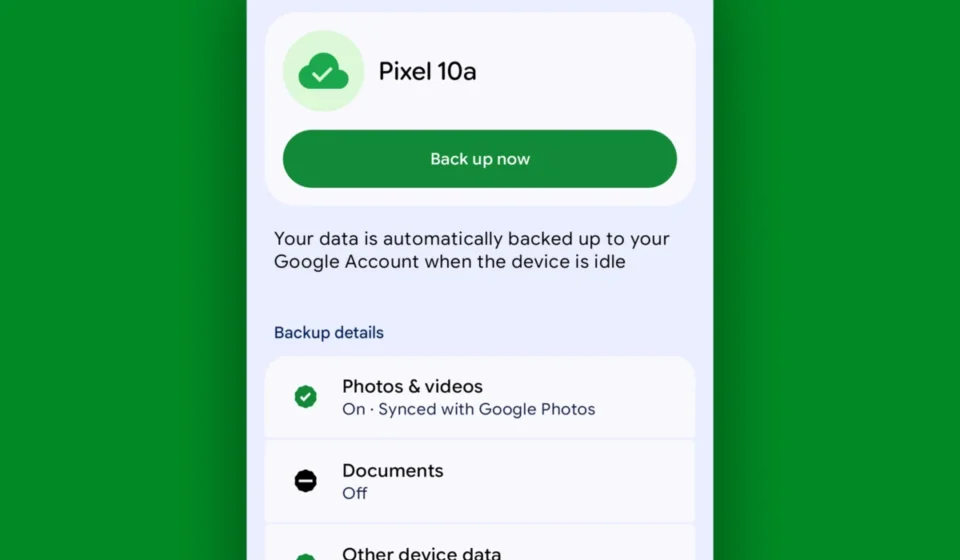
Select the option labeled "Google Backup" or "Back up data." You will be presented with a list of items currently being synced, such as App data, Call history, and Contacts.
Step 3: Enabling Document Sync
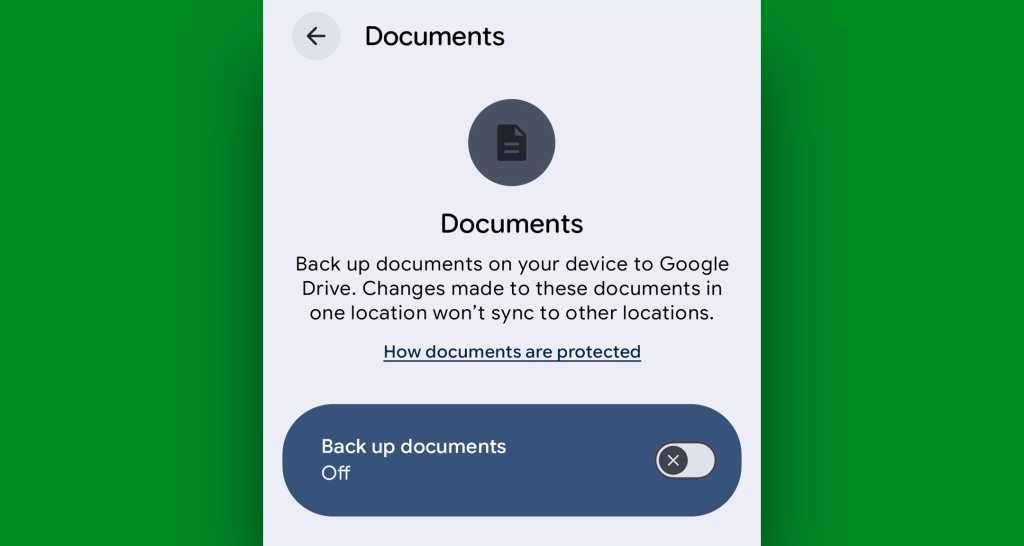
If your device has received the latest update, you will see a new entry labeled "Documents." Tap this entry and toggle the switch to "On." Your device will begin the initial scan and upload process.
Note: If you do not see the "Documents" option, do not be alarmed. Google uses a phased rollout for these background updates. Ensure your system is up to date by checking for software updates in your Settings menu. If your phone is running Android 9 or higher, the feature will reach you in the coming weeks.
The Broader Implications for Data Integrity
The move to include local documents in native backups has profound implications for both individual productivity and enterprise security.
Professional and Enterprise Impact
For the "prosumer" and the business professional, the fragmentation of files across devices has long been a source of anxiety. In the modern, hybrid-work environment, the ability to transition seamlessly between a smartphone, a tablet, and a laptop is non-negotiable. By automating the backup of local files, Google is removing the "last mile" of friction in mobile productivity.
The End of the "Third-Party" Necessity
For years, the void left by this lack of native backup necessitated the use of third-party file-syncing utilities. While many of these tools were robust, they introduced potential security risks, required ongoing maintenance, and often consumed excessive battery life by running constant background processes. A native, system-level solution is inherently more efficient, better integrated into the Android kernel, and far more secure.
A Comparative Perspective: Photos and Media
While the focus here is on documents, it is worth noting how this fits into the broader picture of Android media management. Users often confuse "file backup" with "media backup."
Google Photos remains the gold standard for visual media, offering sophisticated tools to back up screenshots and images from specific folders. By navigating to the "Collections" tab in Google Photos and selecting "On this device," users can manage which folders are synced. This new document backup feature acts as a companion to the photo backup, effectively covering the remaining types of data—text-based files and office documents—that were previously falling through the cracks.
Moving Forward: The "Opt-in" Reality
Despite the convenience of this new feature, the most important takeaway for the Android community is that this is an "opt-in" service. Google has prioritized user privacy and storage management by requiring an active choice from the user before consuming cloud storage space.
This reflects a shifting philosophy at Google: providing the tools for total digital continuity while respecting the user’s agency over their storage capacity. As you move forward, it is recommended that you check your backup settings on every Android device you own. Because this feature is device-specific, it will not automatically activate across your entire ecosystem; you must visit the settings menu on each handset or tablet individually to toggle the switch.
Conclusion: A More Cohesive Android Experience
The addition of native document backup is a quiet but critical milestone for Android. It closes a decade-long gap in the user experience, transforming the phone from a standalone repository of local files into a fully integrated node within the user’s broader digital life.
While industry discourse may currently be dominated by the rapid expansion of generative AI, utility-focused updates like this remain the bedrock of a stable and reliable operating system. By taking ten seconds to verify your settings and enable this feature, you are ensuring that your most important files are protected, synced, and accessible, regardless of what happens to the hardware in your pocket. In the high-tech landscape of 2026, where data is our most valuable asset, this is not just a convenience—it is a necessity.