



























































In the modern digital era, the web browser has evolved from a simple window into the internet into a comprehensive operating environment. For most professionals, the browser is where the workday begins, where tasks are executed, and—unfortunately—where significant amounts of time and system resources are squandered. With web browsing often hampered by inefficiency and digital clutter, optimizing your browser isn’t just a convenience; it is a prerequisite for high-level productivity.
Microsoft Edge, built on the Chromium engine and heavily integrated into the Windows 10 and 11 ecosystems, offers a robust suite of tools designed to reclaim that lost time. By moving beyond basic navigation and utilizing advanced features—ranging from AI-driven assistance to granular resource management—users can transform their browser into a high-performance engine.

The Core Philosophy: Efficiency Through Structure
The transition from a passive browser to a productivity-focused tool requires a fundamental shift in how one interacts with the software. The following strategies, based on the latest iterations of Edge (Windows 11 25H2/Windows 10 22H2), provide a framework for managing the modern, browser-centric workload.
1. Segregating Roles: The Power of Multiple Profiles
The collapse of the divide between personal and professional life has led many users to clutter their work environment with personal bookmarks, shopping history, and leisure-oriented extensions. This creates a cognitive load that hinders focus.
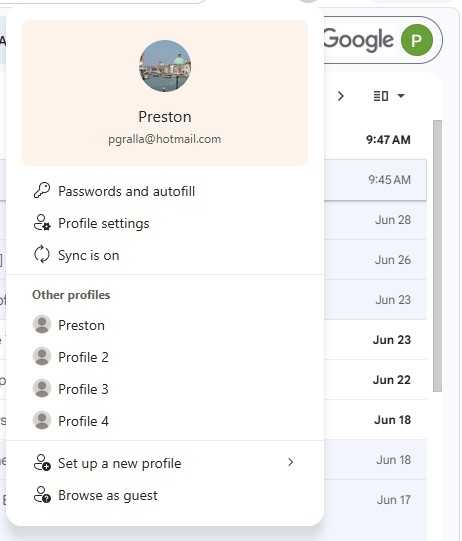
The Solution: Edge allows for the complete segregation of browsing environments through user profiles. Each profile acts as a "silo," housing its own set of bookmarks, passwords, browser history, extensions, and Collections.
- Implementation: By navigating to the user profile icon in the top-right corner, you can create distinct profiles tied to separate Microsoft accounts. This ensures that when you are in "Work Mode," your browser interface is strictly utilitarian, free from the distractions of personal life.
- Automation: You can even configure specific URLs to trigger a switch to a specific profile, ensuring that a link clicked in an email automatically opens in the appropriate work-dedicated browser window.
2. Rapid Navigation: Bypassing the Search Bar
Time lost searching for frequently used internal portals, web apps, or productivity tools adds up significantly over a standard work week. Edge provides three tiers of rapid access:
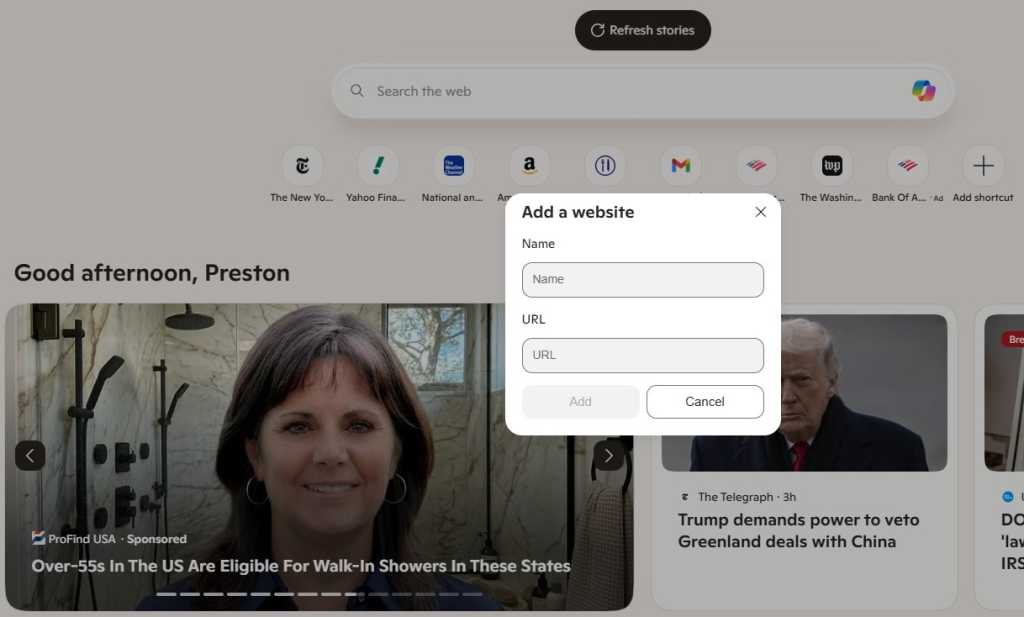
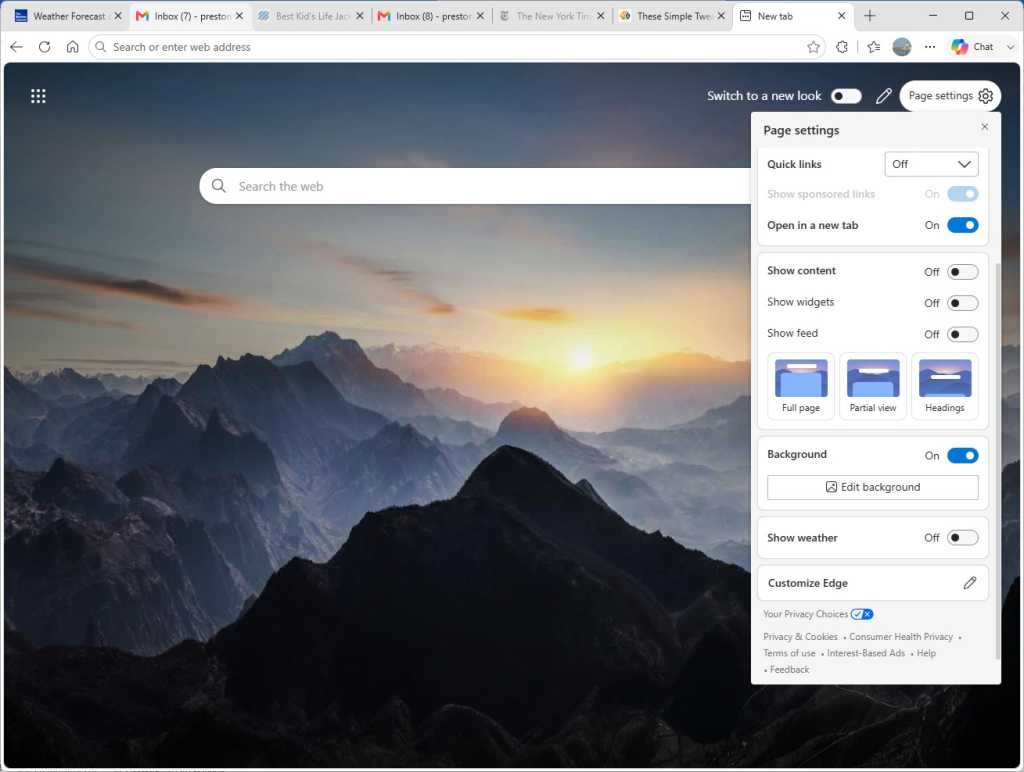
- The New Tab Page: By customizing the "Quick Links" on the new tab page, you can pin your most essential tools, ensuring they are a single click away every time you open a fresh tab.
- Pinned Tabs: For sites that must remain open throughout the day, right-clicking a tab and selecting "Pin" anchors it to the far left of your tab bar. Pinned tabs remain persistent even after a browser restart, saving you from having to manually reload your primary workspace every morning.
- Taskbar Integration: For power users, the "Pin to taskbar" feature (via More tools > Pin to taskbar) treats a website as a standalone application. This allows you to launch your most-used SaaS platforms directly from the Windows taskbar, bypassing the need to open the browser first.
3. Cognitive Organization: Mastering Tab Groups
The "tab-clutter" phenomenon—where users lose track of dozens of open windows—is a primary cause of decision fatigue. Edge’s Tab Groups feature allows users to categorize open pages into distinct visual blocks. By right-clicking a tab and selecting "Add tab to new group," you can color-code projects or departments. This organization reduces the time spent hunting for specific information and allows you to collapse entire project groups to clear your visual workspace when focus is required elsewhere.
The AI Integration: Leveraging Copilot
Microsoft has aggressively positioned Edge as an "AI browser," and the integration of Copilot represents a fundamental change in how we process information.

Intelligent Summarization
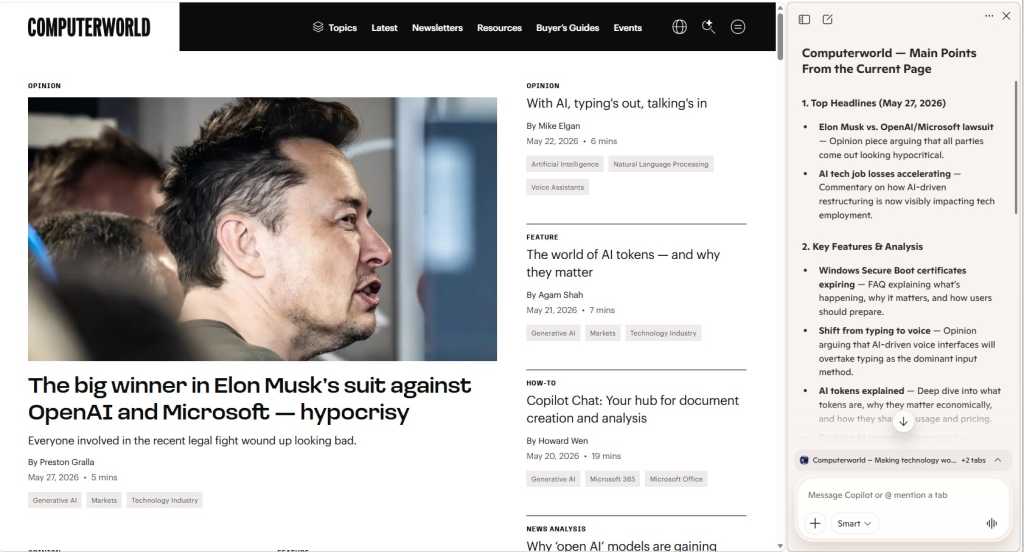
One of the most time-consuming aspects of web research is parsing long-form content. With the Copilot sidebar enabled, users can ask the AI to summarize the contents of the page they are currently viewing. This is particularly effective for:
- Distilling long reports: Copilot can extract key takeaways, bullet points, and data summaries from lengthy white papers.
- Cross-tab context: By using the "summarize my recent activity" function, users can ask Copilot to synthesize information from multiple tabs, effectively acting as a personal research assistant.
Copilot-Centric Workflow
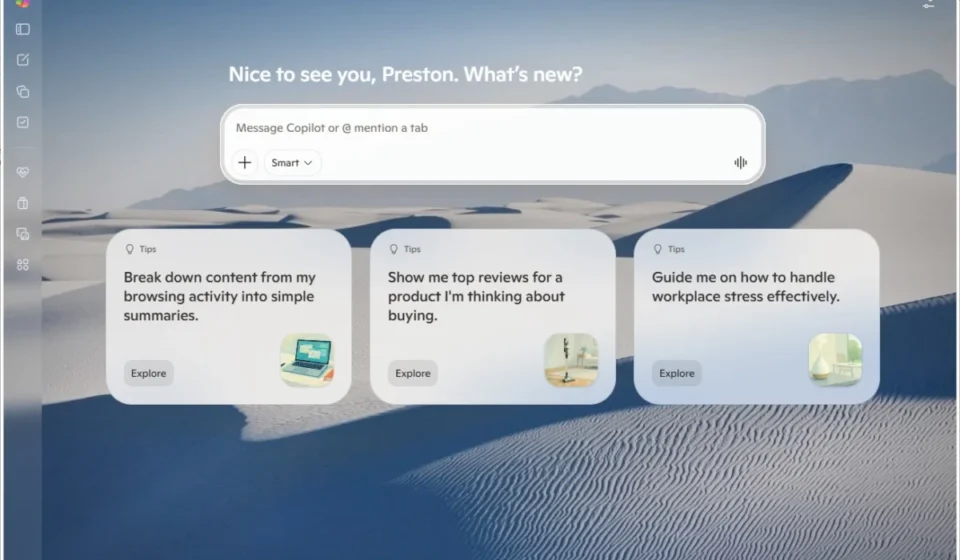
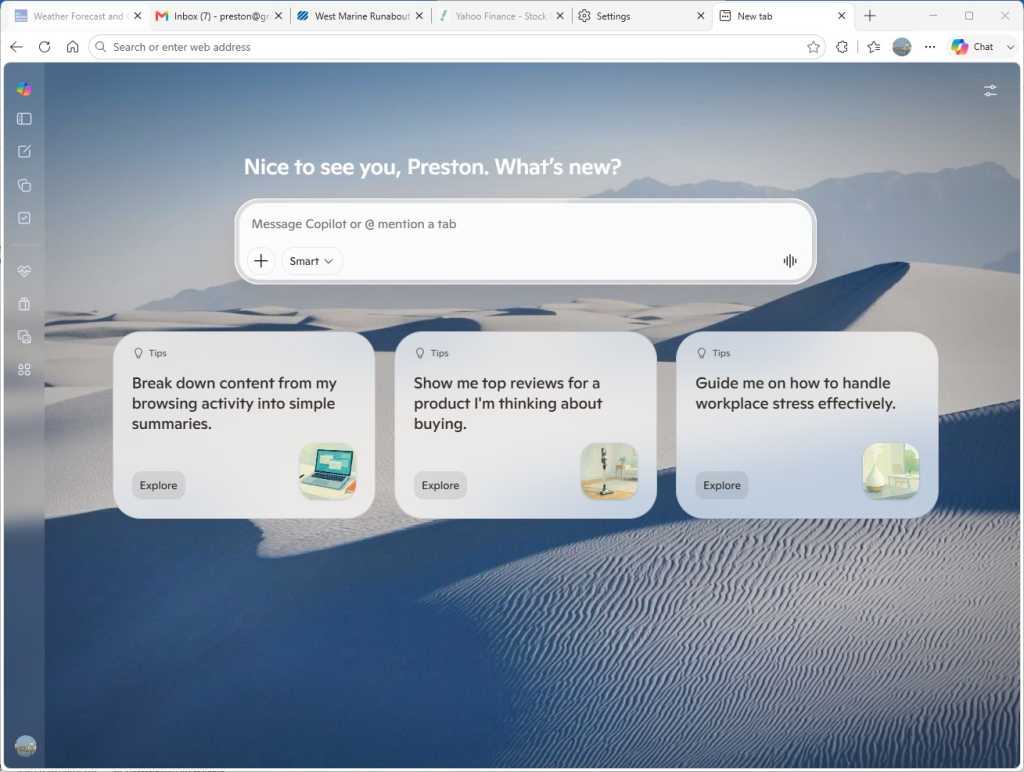
For those who rely heavily on generative AI, the "Copilot new tab page" is a game-changer. By toggling this in the Start, home, and new tab page settings, your browser effectively transforms into an AI-first interface, providing immediate access to image generation, code assistance, and document analysis without the need to navigate to a separate site.
System Optimization: Resource Management
A common complaint among power users is that browsers are "memory hogs." Edge addresses this through sophisticated background management.
Sleeping Tabs
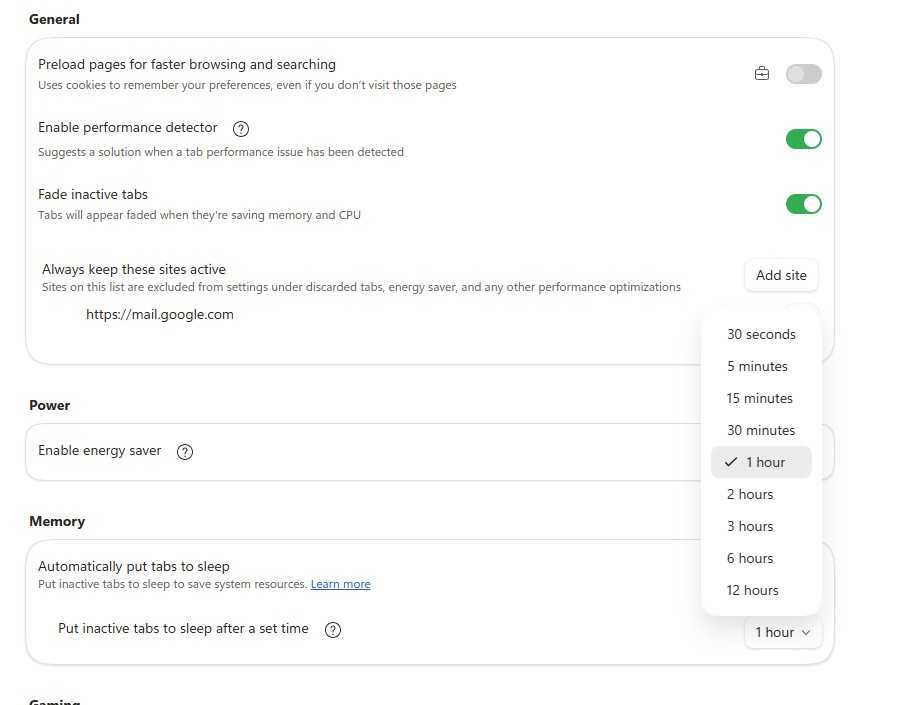
This feature is designed to reduce memory and CPU usage by automatically "putting to sleep" tabs that have been inactive for a set period.
- Data Impact: Internal testing suggests an average reduction in memory usage of 32% and a 37% reduction in CPU load.
- Customization: If a specific web app requires constant background connectivity, you can add it to the "Always keep these sites active" whitelist, ensuring you get the performance gains of tab-sleeping without sacrificing the functionality of critical tools.
Energy Saver Mode
For mobile professionals, battery longevity is paramount. Edge’s Energy Saver mode optimizes background activity and visual frames when the device is running on battery power. Microsoft reports that enabling this feature can yield up to 25 additional minutes of battery life, making it a critical setting for hybrid workers or those traveling.
Security and Utility: Beyond the Basics
Productivity is not merely about speed; it is about maintaining a secure and functional environment.
The AI-Powered Scareware Blocker
Internet scams have become increasingly sophisticated. Edge now includes an AI-driven "scareware" detector. This feature uses machine learning to identify websites that attempt to lock the browser into full-screen mode to display fake virus warnings. By enabling this in the Privacy, search, and services menu, you provide an essential layer of defense against social engineering attacks that aim to steal credentials or install malicious software.
Integrated PDF Management
The reliance on third-party PDF readers often interrupts the flow of work. Edge’s built-in PDF viewer has matured into a highly capable tool. It allows for native markup, highlighting, and annotation without requiring an external application. This keeps the user within the browser ecosystem, maintaining focus and speed.
Chronology of Evolution: Edge’s Productivity Path
- March 2021: Initial focus on basic performance and tab-sleeping features.
- 2022-2023: Introduction of deep "Work/Personal" profile separation and improved Tab Group functionality.
- 2024-2025: Aggressive integration of generative AI (Copilot), shifting the browser’s role from a content viewer to a content creator/processor.
- July 2026 (Current): Maturity of the "AI Browser" model, including enhanced security against advanced social engineering threats and optimized resource management for high-demand professional tasks.
Implications for the Modern Enterprise
The shift toward using the browser as a comprehensive "operating system" has significant implications for enterprise IT. As employees utilize these tools to increase their output, the burden on IT departments to manage browser security and extensions increases. However, the benefits are undeniable: employees who master these 12 tricks report a significant reduction in "task-switching" time, a decrease in system crashes, and a more focused, secure browsing experience.
By implementing these strategies—from simple keyboard shortcuts like Ctrl-Tab for navigation to advanced AI-driven research summaries—users can reclaim hours of lost time each week. The goal is simple: to make the browser work for you, rather than forcing you to work around the limitations of the browser.