



























































Is your inbox a chaotic digital graveyard where important correspondence goes to die? If the sight of a four-digit unread email count causes your stress levels to spike, you are not alone. In an era of constant digital communication, the traditional "folder" mindset—where an item must live in one specific place—is rapidly becoming an obstacle to productivity.
Gmail offers a sophisticated alternative: the Label system. While often misunderstood by those transitioning from legacy clients like Microsoft Outlook, labels represent a paradigm shift in data management. By treating emails as objects to be tagged rather than containers to be filled, Gmail users can achieve a level of organizational clarity that feels almost intuitive. This guide explores the mechanics, strategies, and advanced implications of mastering Gmail labels.
The Core Concept: Why Labels Outperform Folders
At its most fundamental level, the difference between a folder and a label is the difference between a physical filing cabinet and a social media hashtag. In a folder-based system, a file exists in one location. If you have an invoice from a consultant, you must choose: do you file it under "Invoices," "Project X," or "Q3 Expenses"?

Gmail’s label system eliminates this binary choice. You can apply multiple labels to a single message, effectively creating a multi-dimensional filing system. A single email can be tagged as "Work," "Project Alpha," and "Urgent" simultaneously. This ensures that no matter how you search for the item later, the email will surface.
The Mechanics of Implementation
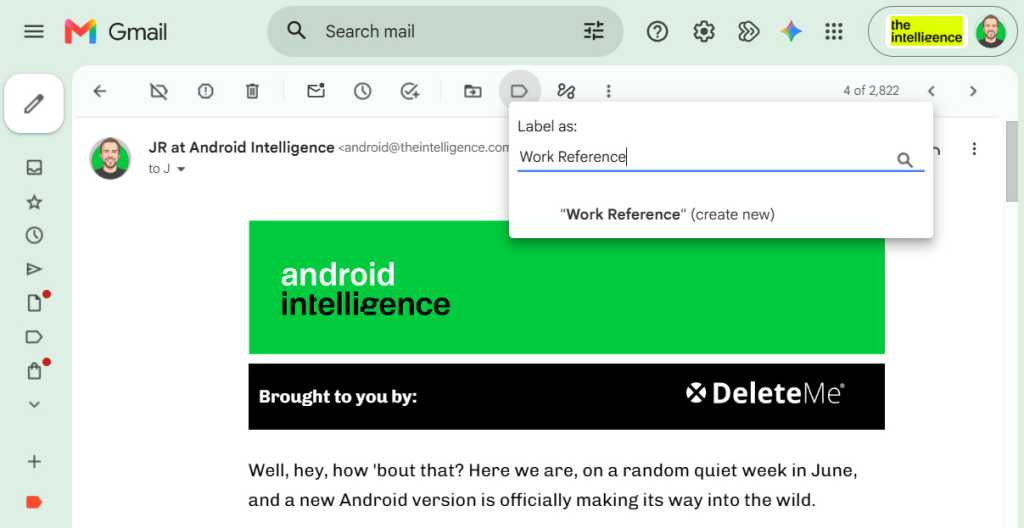
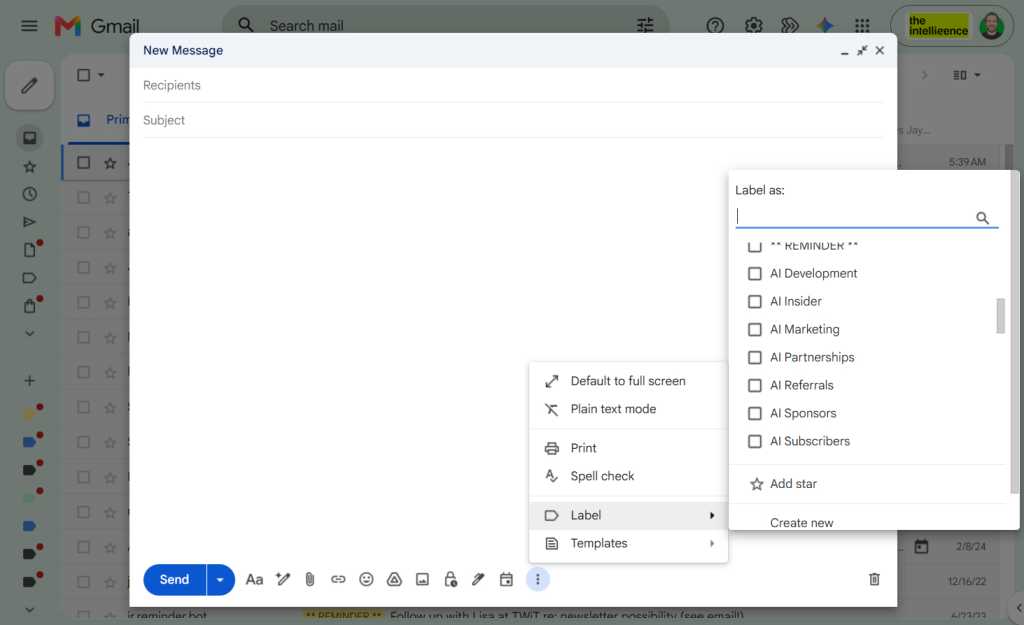
To create a label on the desktop web interface, select a message and click the label icon in the toolbar. Type a new name, press Enter, and the tag is instantly applied. On mobile devices, the process is streamlined: utilize the three-dot menu on Android or iOS to apply existing tags or create new ones on the fly. For power users, enabling keyboard shortcuts (the ‘L’ key) reduces the act of categorization to a split-second muscle memory.
Chronology of Inbox Evolution
The transition from static folders to dynamic labeling began as a core differentiator for Gmail during its beta phase in 2004. Unlike its predecessors, which relied on the Post Office Protocol (POP) structure, Gmail’s architecture was built on a database-centric model.
- 2004–2009: Early adoption phase. Users learned the "Archive" button was not a delete button, but a tool to remove clutter from the primary inbox while preserving the message under its assigned labels.
- 2010–2018: The integration of "Labels as Search." Google refined the search operator system, allowing users to query by
label:name, turning the inbox into a powerful, filterable database. - 2019–Present: The era of automation. With the advent of machine learning-based filters, labels evolved from manual tasks to automated workflows, where the system identifies "VIP" senders or financial documents without human intervention.
Supporting Data and Organizational Efficiency
Research into workplace productivity suggests that "context switching"—the mental energy spent deciding where to file or find information—accounts for a significant portion of daily administrative fatigue. According to industry analysis, users who utilize automated labeling systems spend 30% less time managing their inboxes than those who use manual filing methods.
Furthermore, the ability to use sublabels (nesting categories) allows for a hierarchical structure that mirrors real-world business needs. For instance, creating a parent label like "Finance" and sub-labels like "Invoices," "Tax Docs," and "Payroll" creates a clean, vertical navigation bar. This visual reduction of clutter is statistically linked to lower levels of "digital anxiety" among information workers.
Advanced Strategies for Power Users
1. The "Label and Archive" Shortcut
Why leave a message in the inbox once it has been categorized? The "Move to" function is a critical efficiency tool. By selecting "Move to" rather than "Label," you effectively apply the tag and remove the email from your primary view in a single click. This keeps your inbox clean, ensuring that only "active" tasks remain in the main queue.
2. Intelligent Search Variables
Labels act as variables in search queries. If you are looking for a specific document, you can combine operators to drill down deep. For example:
label:travel from:[email protected] has:attachment
This query instantly isolates travel itineraries, bypassing hundreds of other emails from the same sender that may be promotional in nature.
3. Automated Filtering: The "Set and Forget" Method
The true power of labels lies in automation. By navigating to Settings > Filters and Blocked Addresses, you can create rules based on sender, subject line, or keywords.
- Example: Any email from your bank with the subject line "Statement" can be automatically labeled "Finance/Bank" and "Archived," bypassing the inbox entirely. You know the document is safe and categorized, but you aren’t interrupted by its arrival.
Implications for Modern Workflow
The implication of moving to a label-based workflow is a fundamental change in how one perceives "Inbox Zero." It is no longer about deleting emails; it is about proper routing. By leveraging labels, an inbox ceases to be a to-do list and becomes a dynamic repository.
Official Perspectives on Digital Hygiene
Google’s documentation emphasizes that labels are not meant to be permanent storage for every piece of mail. Instead, they serve as "indexing markers." When users treat their labels as an index, they stop fearing the "Archive" button. The data is never lost; it is simply indexed for future retrieval.
Challenges and Limitations
While powerful, the system is not without its nuances. For example, the mobile app experience for label management is historically more restrictive than the desktop interface. Additionally, over-tagging—the act of creating too many labels—can lead to "label fatigue," where the sidebar becomes as disorganized as a messy inbox. Experts recommend a "less is more" approach, focusing on broad categories rather than micro-managing every interaction.
Final Best Practices
To optimize your experience, consider these final recommendations:
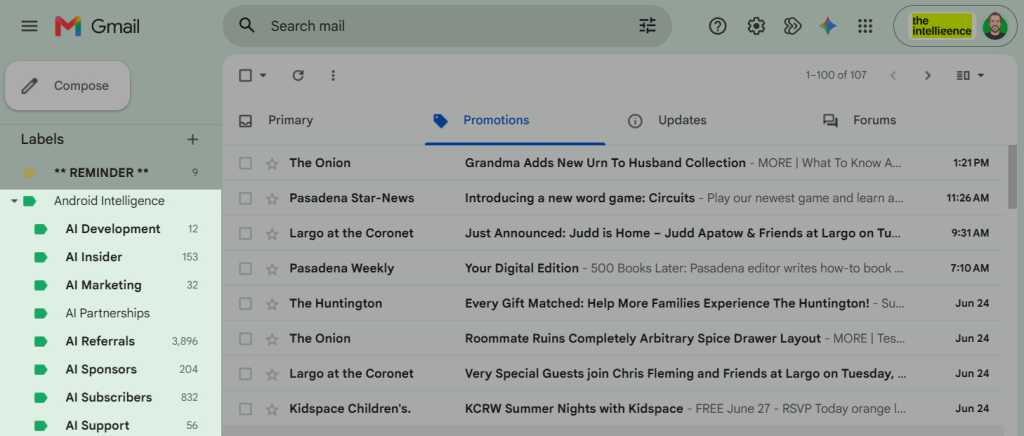
- Use Color Coding: On the desktop version, click the three-dot menu next to a label to assign it a color. Visual cues allow your brain to process the priority of an email before you even read the subject line.
- Limit Notifications: Use labels to gatekeep your notifications. By setting your mobile device to only ping you for emails labeled "Urgent" or "VIP," you reclaim your focus from the constant barrage of non-essential correspondence.
- Audit Regularly: Once a quarter, review your label list. If a label has not been used in three months, delete it or merge it into a broader category.
By embracing the label system, you transition from being a passive recipient of email to an active architect of your own information environment. It requires a small investment of time to set up, but the dividend—a calm, organized, and searchable digital life—is well worth the effort. Go ahead, label yourself organized; your future self will thank you.