



























































In the modern digital workplace, the challenge is rarely a lack of information; it is the overwhelming abundance of it. As Google Workspace users accumulate thousands of files—ranging from sprawling spreadsheets and collaborative slide decks to fragmented email threads and ephemeral chat logs—the ability to extract actionable insights becomes increasingly difficult. While Google’s Gemini AI has long offered the capability to query your Drive, the sheer volume of data can lead to diluted results or sluggish response times.
Enter "Drive Projects," a powerful, often overlooked feature within the Google Workspace ecosystem designed to bridge the gap between disorganized cloud storage and high-level AI analysis. By allowing users to bundle specific documents, emails, and calendar events into a singular, dedicated container, Google has provided a way to force Gemini to "stay in its lane," resulting in faster, more accurate, and highly contextual insights.
The Evolution of AI Context: Why "Projects" Matters
To understand the utility of Drive Projects, one must first understand the limitations of general-purpose AI searching. When you ask a broad question like, "What is the status of our Q4 budget?" in a standard Gemini sidebar, the AI must perform a massive index search across your entire digital footprint. This is akin to asking a librarian to find a specific paragraph in an entire city library; it is resource-intensive and prone to noise.

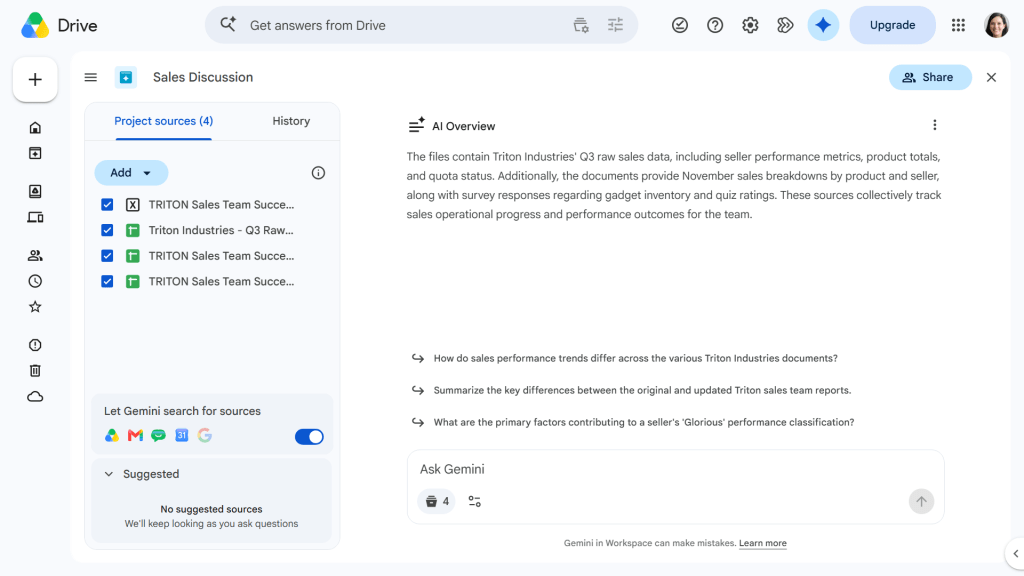
Drive Projects functions as a "curated research environment." By explicitly selecting the source material—a specific PDF, a series of email threads, and a handful of relevant spreadsheets—you effectively narrow the scope for the AI. This focus yields two critical benefits:
- Contextual Accuracy: Gemini is less likely to hallucinate or pull irrelevant information from unrelated files.
- Performance Efficiency: By limiting the "search surface," the system generates responses with significantly reduced latency.
This approach mirrors the functionality of Google’s NotebookLM, but with a crucial advantage: it is natively integrated into your existing file management system. There is no need to manually upload documents to a third-party tool; you are simply defining relationships between files that already exist in your ecosystem.
Chronology of Development: From Search to Synthesis
The rollout of Projects represents the latest phase in Google’s "Generative AI for Workspace" strategy.
- Phase 1 (The Search Era): Google refined its semantic search capabilities, allowing users to find files based on natural language queries.
- Phase 2 (The Side Panel Integration): Gemini was embedded directly into the Workspace UI, allowing users to summarize individual documents on the fly.
- Phase 3 (The Projects Era): The introduction of Projects marks a shift from document-centric AI to project-centric AI. By allowing users to create persistent, collaborative workspaces, Google is moving toward an environment where the "project" acts as the primary entity, and the files within it serve as the raw data for analysis.
Core Functionality: How to Build Your First Project
Implementing Drive Projects is straightforward, though it currently requires a desktop-first approach. To get started, navigate to the Google Drive web interface.
Creating from Scratch
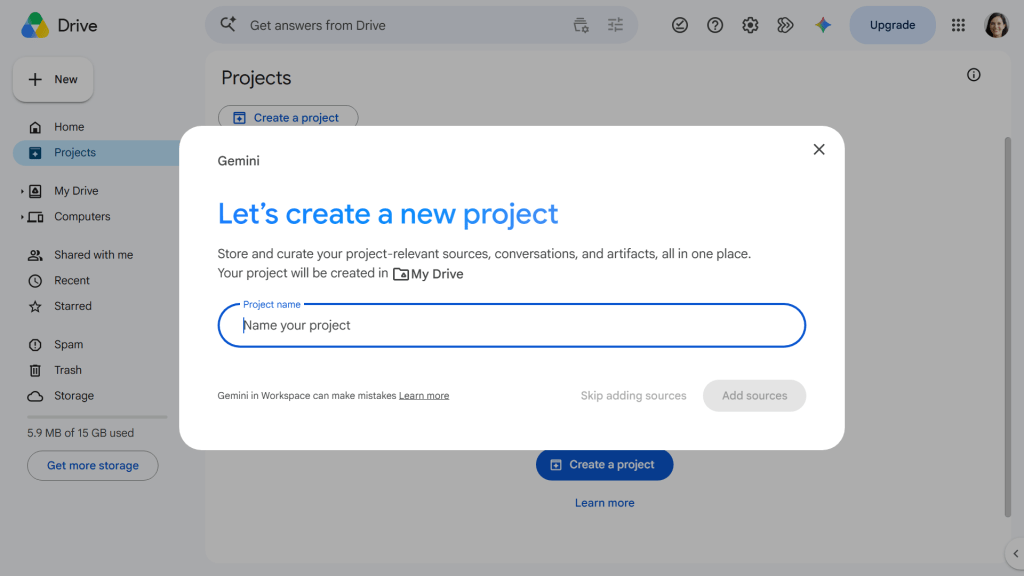
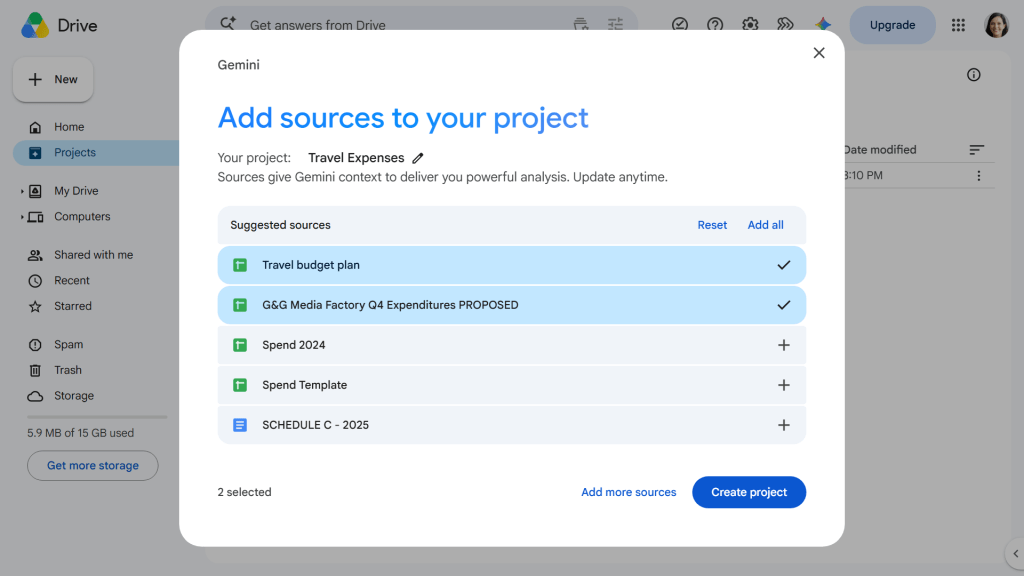
You can initiate a new project by selecting the "Projects" tab in the Drive interface. Once you name your project—be as specific as possible, such as "Q4 Marketing Strategy 2025"—you move to the "Add Sources" phase.
The AI will intelligently suggest files based on your recent activity. However, the true power lies in the "Add More Sources" function, which allows you to drill down into specific folders or search for legacy documents that may not have been accessed recently but are vital to your current objective.
The "Let Gemini Search" Toggle
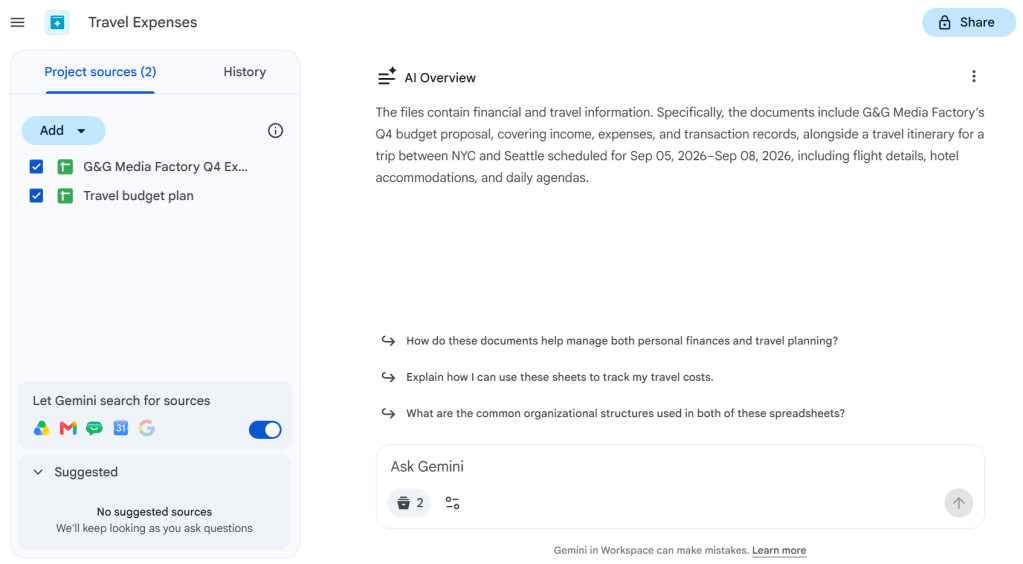
A critical, often overlooked step is toggling the "Let Gemini search for sources" switch. When enabled, this allows the AI to dynamically scan your Gmail, Google Chat, and Calendar for related content that you may have forgotten to manually include. This creates a "living" research environment where the AI acts as a persistent assistant tracking the evolution of your work.
Creating from Within a Chat
If you are already mid-conversation with Gemini, you don’t need to stop and start over. If a particular chat session yields high-quality insights or references specific documents, you can simply click "Save as a project" in the top right corner. The AI will analyze the conversation, propose a title, and migrate the relevant files into a new, permanent Project container.
Supporting Data and Technical Requirements
For users wondering if they have access, the barrier to entry is tied to the subscription level. Because the processing power required to manage these projects is significant, the feature is not available on free, personal Google accounts.
- Business and Enterprise: Users on Google Workspace plans including Business Standard, Business Plus, Enterprise Standard, and Enterprise Plus have full access.
- Individual Subscriptions: Users must be subscribed to a paid Google AI Premium plan to leverage these advanced features.
Important Technical Note: While you can create and manage these projects via a desktop browser, the mobile experience is currently restricted. You can view, rename, and adjust sharing permissions on your phone, but the heavy lifting of curating sources and running deep-context analysis should remain a desktop activity.
Collaborative Implications: The Future of Teamwork
Perhaps the most significant advancement of Drive Projects is the ability to share the entire context with a colleague. Traditionally, if you wanted a co-worker to understand a complex project, you would have to send them a dozen individual links and a long explanatory email.
With Drive Projects, you simply share the project link. When your colleague opens it, they are presented with the same curated sources and the same Gemini interface you used to analyze them.
Permission Management
Privacy remains a top priority. When you share a project, the standard Google Drive permissions apply:
- Viewer: Can read the files and see the project history but cannot add or remove sources.
- Editor: Can actively add new documentation, remove irrelevant files, and engage in their own AI-driven analysis of the materials.
This creates a "single source of truth." If a team member is brought onto a project late, they don’t have to hunt for context. They can simply ask the Project’s Gemini, "What are the main goals of this project and what has been decided so far?" and receive a summary based on the exact documents the team has been working on.
Official Responses and Ethical Considerations
Google has maintained a stance of "Human-in-the-Loop" development regarding these tools. Because these projects often involve sensitive business data—financial projections, internal strategy documents, and confidential emails—the company emphasizes that the AI is a collaborative tool, not an automated decision-maker.
Verification Protocols:
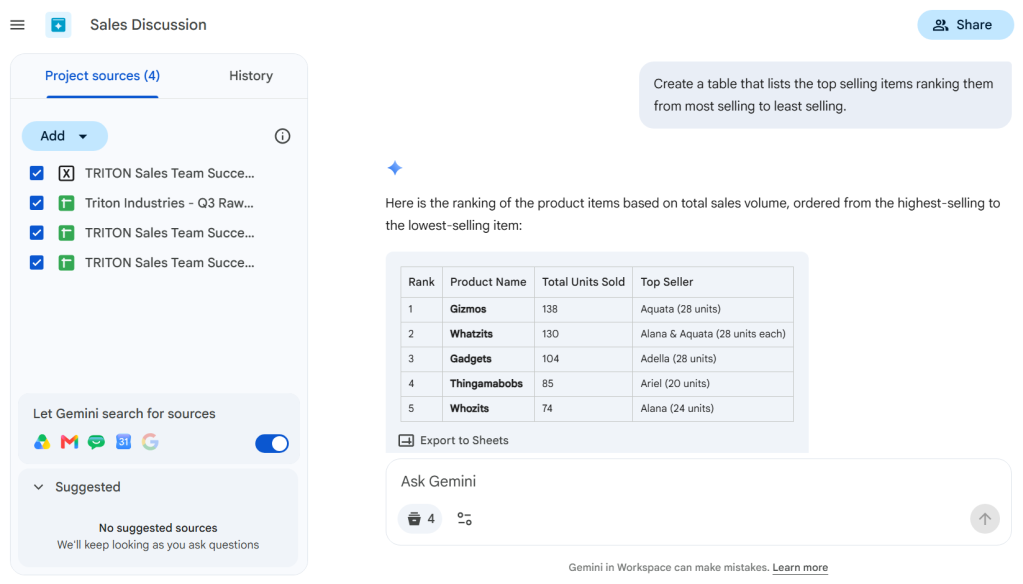
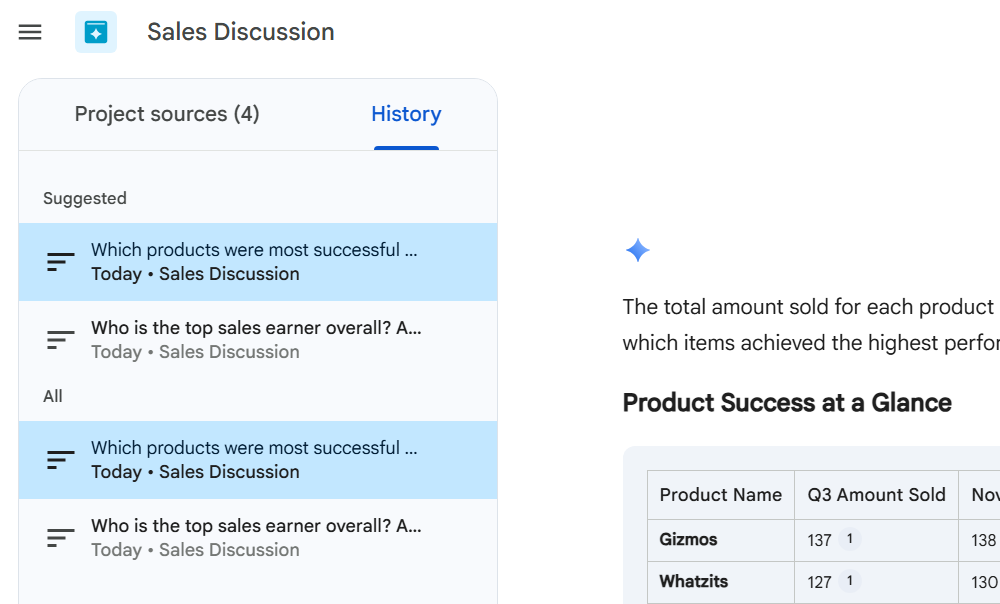
- Source Citation: When Gemini provides an answer within a Project, it links back to the specific source document. Users are encouraged to click these citations to verify the AI’s conclusions against the raw data.
- Data Isolation: Google confirms that files used in a Project remain bound by your organization’s standard data governance and security policies. The AI does not "learn" from your private data to train public models; it uses your data solely to assist you within your secure environment.
Implications for Future Productivity
The shift toward project-based AI interaction signals a larger trend in the software industry: the move away from "application-switching" fatigue. In the past, you might have moved between Gmail, Drive, and Sheets to piece together a project. Now, the project exists as a layer above these applications.
By centralizing your digital assets into these AI-powered hubs, you are effectively training a "Digital Twin" of your work habits. As we look toward 2026 and beyond, we can expect these projects to become even more autonomous, potentially suggesting the inclusion of new files based on your calendar events or alerting you when a key document within your project has been updated by a collaborator.
Final Best Practices for Users
- Be Descriptive: A project titled "New Project 1" is useless. Use descriptive, date-stamped titles.
- Clean Up: Periodically review your sources. If a document is no longer relevant, remove it to keep the AI’s focus sharp.
- Trust, But Verify: Always double-check calculations or data points in spreadsheets, as AI can occasionally misinterpret complex formulas.
In conclusion, Google Drive Projects is a sophisticated, high-utility tool that rewards those who take the time to organize their digital space. By leveraging the synthesis capabilities of Gemini within a bounded, curated environment, you are not just storing files—you are building a dynamic, intelligent engine for your daily work.