


























































In the modern digital workspace, the inbox is often the primary battleground of productivity. For millions of professionals, the daily influx of newsletters, automated notifications, project updates, and direct correspondence creates a state of perpetual "inbox fatigue." While Google continues to experiment with AI-driven solutions like Gemini to help users parse their mail, many power users find that the most reliable, efficient, and transparent tool for managing email has been hiding in plain sight for years: Gmail’s native filter system.
By moving beyond the default interface and mastering the logic of custom-crafted filters, users can reclaim their time and ensure that their inbox functions as a well-oiled machine, rather than a chaotic repository of unread messages.
The Philosophy of Email Automation
The allure of AI-driven inbox management is undeniable, promising a future where software anticipates our needs. However, as of late 2026, many of these "smart" features remain inconsistent or unavailable to the general public. More importantly, AI systems often operate as "black boxes"—you may not always know why a message was archived or prioritized, and you rarely have granular control over the logic governing those decisions.
Gmail filters, by contrast, offer a deterministic, rule-based approach. They do not rely on probabilistic guessing; they act based on the specific, user-defined criteria you provide. By investing a small amount of time upfront to design a workflow, you ensure that your inbox behaves exactly the way you want it to, every single time, without the unpredictability of generative models.

Chronology: From Basic Sorting to Advanced Workflows
The Early Days of Filtering
Gmail launched in 2004 with a focus on search, but it wasn’t long before users demanded better organizational tools. The "Filters and Blocked Addresses" feature was introduced to allow users to move messages to labels, delete them, or forward them based on simple criteria.
The Evolution of Sophistication
Over the last two decades, the system has evolved significantly. While the core UI remains focused on simplicity, the underlying search operators—such as AND, OR, and specific field qualifiers like has:attachment or list:subscriber—have transformed the system into a high-powered automation engine.
The Present: The "Clean Inbox" Era
Today, the most effective workflow involves a "triage" system. Instead of reacting to emails as they arrive, users can now create "routing" filters that automatically categorize mail into "To Read," "To Act," and "Low Priority" folders, effectively clearing the primary inbox of noise before the user even opens the app.
Supporting Data: Why Filters Outperform Manual Sorting
Research into professional productivity consistently highlights "context switching"—the mental cost of moving between tasks—as a primary drain on efficiency.

- Time Savings: Studies suggest that an average professional spends approximately 28% of their workday reading and answering emails. Automating just 30% of this through filters can save an employee roughly 5 to 7 hours per week.
- Cognitive Load: By using filters to bypass the inbox for non-urgent notifications (like automated reports or mailing lists), users reduce the number of visual interruptions, leading to higher levels of "deep work" and improved focus.
- Reliability: Unlike AI-based "Priority Inboxes" which can misclassify important client emails as promotions, manual filters operate with 100% precision based on your defined rules, ensuring zero false negatives for critical communication.
Step-by-Step: Creating Your Custom Filters
To build an automated system, you must access the desktop browser version of Gmail. Filters are managed centrally, and while they affect your mobile experience, they are best configured on a desktop for visibility.
1. The Setup Process
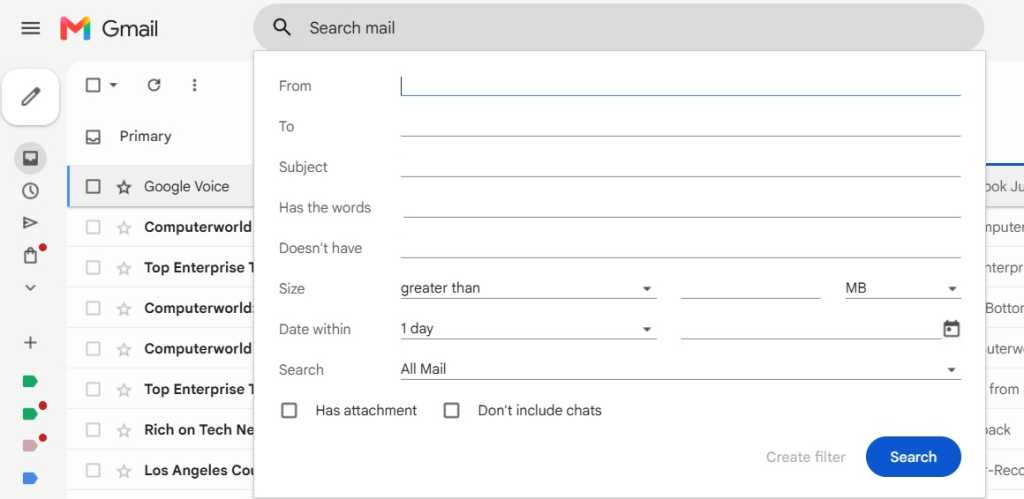
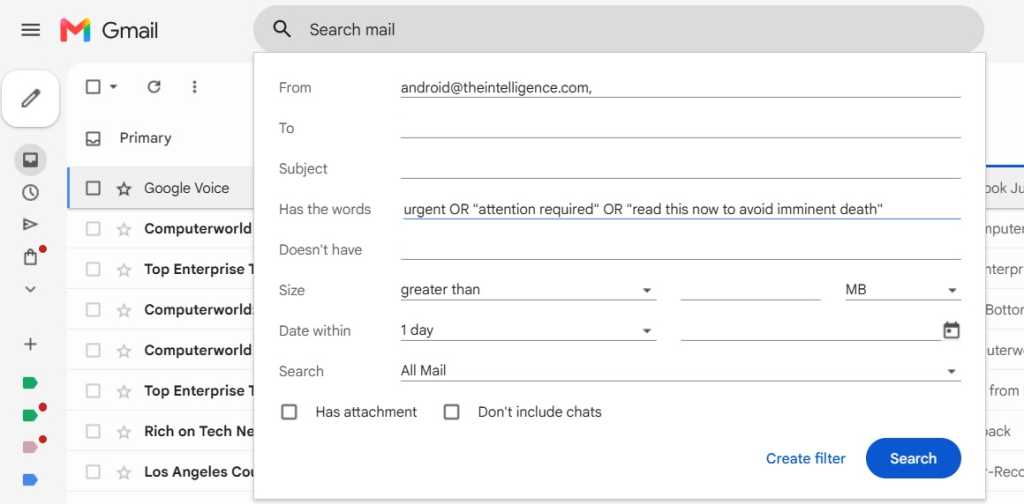
Locate the search box at the top of your Gmail window. Click the "Show search options" icon (the three horizontal sliders on the right side of the search bar). This opens the filter creation interface.
2. Defining the Parameters
You can filter by:
- From: Target specific senders or entire domains.
- Subject: Use keywords to catch specific types of updates.
- Has the words: Utilize advanced operators. For instance, using
"Invoice" OR "Receipt"will catch any email containing either term. - Size: Filter out or flag large attachments that might clog your storage.
3. Executing the Actions
Once your criteria are set, click "Create filter." You will be presented with a checklist of actions:
- Skip the Inbox (Archive it): Essential for newsletters you want to read later.
- Apply the label: Use this to categorize mail into project folders automatically.
- Never send it to Spam: A crucial fail-safe for critical newsletters or automated system alerts.
- Always mark it as important: Ensures specific VIP emails bypass standard sorting.
4. Retroactive Application
One of the most powerful aspects of this tool is the "Also apply filter to matching conversations" checkbox. Checking this will immediately organize your existing archive, potentially cleaning up years of clutter in seconds.
Official Responses and Industry Context
Google has consistently maintained that its "AI Inbox" and traditional filters are intended to be complementary, not mutually exclusive. However, product experts often point out that as Google pushes toward a more "automated" future, the manual override tools—the classic filters—remain the safest harbor for enterprise users who require absolute consistency.
While Google’s Gemini-powered features seek to "figure out what you want," the reality is that no machine yet understands the nuanced hierarchy of a professional’s daily life as well as the professional themselves. Whether it is an executive needing to highlight emails from a board member or a developer needing to sort GitHub notifications into distinct labels, manual filters provide the granular control that "intelligent" systems currently lack.
Implications for the Future of Productivity
As we move further into the "AI Era," the definition of a "power user" is changing. In the past, it meant knowing every keyboard shortcut; today, it means knowing how to architect systems that work with technology rather than being subservient to it.
The "Well-Oiled Machine"
When your Gmail filters are properly configured, your inbox becomes a passive dashboard. Instead of hunting for information, the information is delivered to your specific labels in a state of pre-sorted order. You stop being a "gatekeeper" of your own inbox and start being a manager of your own time.
Maintenance and Auditing
The most common mistake users make is "set it and forget it." Even the best filter system needs a quarterly audit. Every three months, navigate to Settings > Filters and Blocked Addresses. Delete filters for projects that are complete, update email addresses for vendors who have changed their domains, and prune redundant rules.
Final Thoughts
While we may dream of a day when Google can handle every aspect of our digital lives—or perhaps even deliver fresh snickerdoodles—that day has not yet arrived. Until then, the power to define your digital environment rests firmly in your own hands. By mastering the filter system, you are not just managing email; you are reclaiming the mental bandwidth required for the work that actually matters.
The filter system is not a relic of the past; it is the fundamental building block of a manageable, stress-free, and highly efficient digital workspace. Take the time to set it up, refine it, and watch as your inbox transforms from a source of anxiety into a streamlined tool for success.