

























































For decades, the web browser has served as the primary gateway to the digital world. It is the application where we conduct our banking, stream our entertainment, and manage our professional correspondence. Recognizing its importance, Microsoft has spent years attempting to cement its proprietary browser, Microsoft Edge, as the cornerstone of the Windows experience. However, for a significant portion of the global user base, the transition from the legacy "Internet Explorer" era to the modern "Edge" era has been met with persistent resistance.
While Microsoft’s strategy has involved aggressive prompts, system-level integration, and frequent reminders during Windows updates, users have consistently migrated toward alternatives like Google Chrome and Mozilla Firefox. This article examines the technical landscape of browser competition, the evolution of Edge, and provides a comprehensive guide for users who wish to reclaim control over their default browsing experience in Windows 10 and 11.
The Evolution of the Browser Wars: A Chronology
To understand why changing your default browser has become a complex administrative task, one must look at the history of Microsoft’s browser strategy.
The Era of Stagnation (2015–2019)
When Windows 10 launched in 2015, Microsoft introduced "Project Spartan," later rebranded as Microsoft Edge. This original version of Edge was built on Microsoft’s own proprietary rendering engine. While it was designed to be lightweight and modern, it suffered from a critical lack of extension support and compatibility issues with many websites optimized specifically for Google’s Chromium engine. During this period, users defected to Chrome in droves, citing superior performance and a vast library of add-ons.
The Chromium Pivot (2020–Present)
In January 2020, Microsoft performed a strategic U-turn. They released a completely rebuilt version of Edge based on the Chromium engine—the very same open-source foundation that powers Google Chrome. This change was a watershed moment: suddenly, Edge was fast, reliable, and compatible with virtually every website on the internet. Furthermore, it gained the ability to run Chrome extensions.

Despite these technical improvements, the "default browser" battle continued. Microsoft began using Windows 11 as a walled garden, where certain system-level links were hardcoded to open exclusively in Edge, regardless of user preference, unless specific workarounds or regional regulations (notably in the European Union) were in place.
Why You Might Actually Want to Stick with Edge
Before embarking on the process of changing your default browser, it is worth considering why Microsoft continues to push Edge so aggressively. The modern iteration of the browser is objectively a high-performance tool.
Performance and Resource Management
In various independent benchmarks, the Chromium-based Edge often outperforms Chrome in terms of memory usage. Microsoft has implemented "Sleeping Tabs" and other efficiency features that allow the browser to consume fewer system resources, which is particularly beneficial for users on laptops or machines with limited RAM.
Feature-Rich Integration
Edge has carved out a unique niche by integrating advanced features directly into the browser shell. For power users, the ability to "install" websites as Progressive Web Apps (PWAs) allows them to function like native desktop applications, keeping them organized and accessible. Additionally, the deep integration of Microsoft Copilot—the company’s generative AI chatbot—provides a seamless experience for those already entrenched in the Microsoft 365 ecosystem.
Extension Compatibility
A common misconception is that switching to a non-Chrome browser means losing access to your favorite tools. Because Edge uses the same engine as Chrome, it supports thousands of Chrome-based extensions. Furthermore, Microsoft maintains its own curated library of Edge Add-ons, which are rigorously vetted, providing an extra layer of security for users concerned about malicious plugins.
How to Reclaim Your Browser Choice
If you have decided that another browser better suits your workflow—whether it’s the privacy-focused nature of Firefox, the specific synchronization features of Chrome, or the lightweight speed of Opera—you can change your default settings in just a few minutes.
Changing Defaults in Windows 10
Windows 10 handles browser defaults through a centralized menu within the Settings application.
- Open Settings: Click the Start button and select the gear-shaped Settings icon.
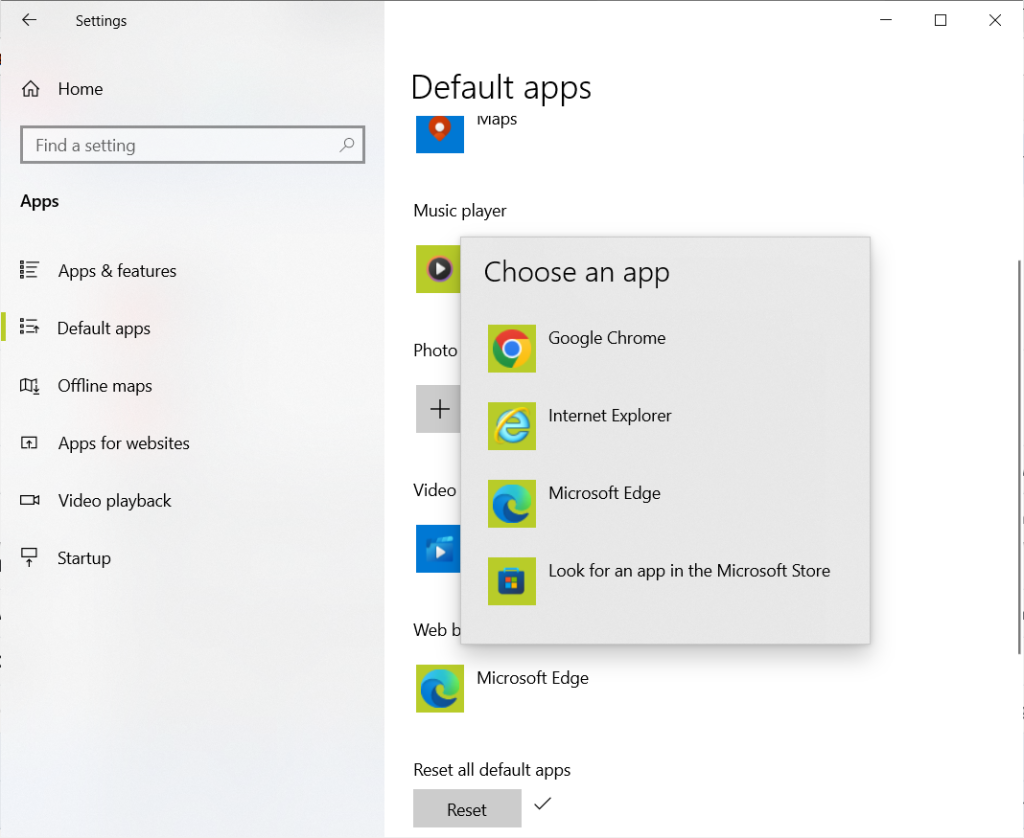
- Navigate to Apps: Select Apps and then click on Default apps in the left-hand sidebar.
- Identify the Browser Section: Scroll down to the Web browser category. You will likely see the Microsoft Edge icon currently selected.
- Select Your Preferred Browser: Click the icon and select your desired browser from the pop-up list.
- Note: If your preferred browser is not installed, the system may prompt you to look for one in the Microsoft Store. However, for a better experience, we recommend downloading the official installer directly from the browser’s website (e.g., Google or Mozilla) to ensure you are getting the full desktop version rather than a stripped-down Store variant.
Changing Defaults in Windows 11
Windows 11 introduced a slightly more granular, albeit more cluttered, approach to default applications.
- Access Settings: Open the Start menu and go to Settings.
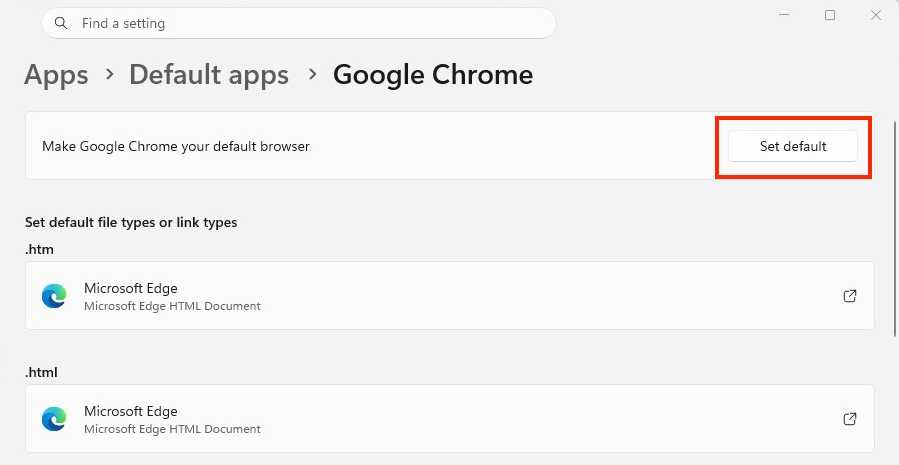
- Default Apps: Navigate to Apps > Default apps.
- Search for Your Browser: In the list of applications, search for the browser you wish to set as default (e.g., Google Chrome).
- Set as Default: Click on the browser name, then click the Set default button at the top of the resulting screen. A checkmark will appear, confirming that the change has been applied to the primary protocols.
Beyond the Basics: Handling File Types and Protocols
Simply setting a default browser does not always capture every instance where a link might be triggered. Windows often maintains separate associations for specific file types like PDFs, HTML files, and web protocols (HTTP, HTTPS).
The "Deep Dive" Method for Windows 10
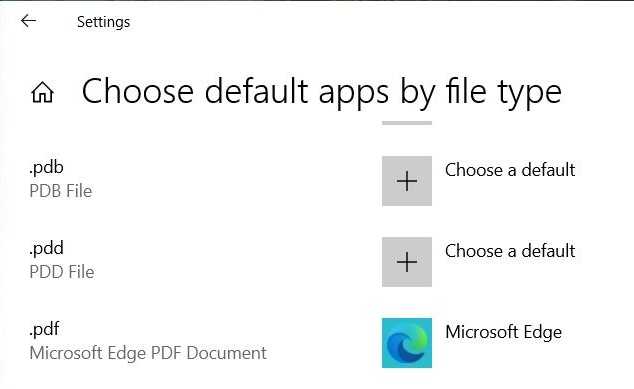
If you find that PDFs or specific links are still opening in Edge, follow these steps:
- Go to Settings > Apps > Default apps.
- Select Choose default apps by file type.
- Scroll through the extensive list to find common web extensions like
.pdf,.html, or.svg. - Click the associated icon and manually reassign them to your preferred browser.
The "Deep Dive" Method for Windows 11
Windows 11 makes this easier to visualize but potentially more tedious to execute:
- Go to Settings > Apps > Default apps.
- Click on your browser of choice.
- The system will display a list of every file extension and protocol that the browser is capable of handling. You can click on each individual entry to verify or change the associated application.
Implications of Microsoft’s "Edge-First" Strategy
The friction users experience when switching browsers is not an accident; it is the result of a deliberate design philosophy known as "Platform Preference."
Official Microsoft Stance
Microsoft maintains that these defaults are designed to provide a "consistent and secure" experience. By ensuring that system links—such as those found in the Start menu search or Widgets—open in Edge, Microsoft claims it can better protect users from malicious sites and provide a more integrated experience with Windows-native features like Microsoft Search.
The Consumer Impact
From a consumer advocacy perspective, these practices have drawn criticism. Digital rights groups argue that operating systems should remain neutral platforms. When an OS vendor prioritizes its own software, it effectively creates a "dark pattern"—a user interface designed to trick or coerce users into making a decision that benefits the provider rather than the user.
Future Outlook
There is a silver lining. Recent reports and leaks suggest that Microsoft is under increasing pressure from international regulators to make Windows more "browser-agnostic." Sleuths tracking preview builds of Windows 11 have identified internal code flags that suggest the Start menu and taskbar search might soon honor the user’s default browser choice globally, not just in the European Union.
Conclusion: Empowering the User
Whether you are a power user who requires specific extensions, a privacy advocate who trusts Firefox, or someone who simply prefers the interface of Chrome, the power to choose remains in your hands. While Microsoft continues to optimize Edge to be a genuinely formidable browser, the choice of your digital "front door" should always remain yours. By following the steps outlined above, you can ensure that your Windows experience is customized to your preferences, rather than the defaults set by the manufacturer.
As the browser landscape continues to shift, staying informed about how to manage these settings is the best way to maintain control over your digital environment. Remember: the "best" browser is the one that allows you to work, play, and explore the internet exactly how you want to.