





























































Since its debut in 1985, Microsoft Windows has evolved from a clunky, unstable graphical shell into the world’s most dominant operating system. For decades, users endured the "Blue Screen of Death" (BSOD) and the labyrinthine nightmare of manual driver installations. While Windows 11 has brought a level of polish and stability that would have been unimaginable to users of the Windows 95 era, the modern computing experience is still marred by design choices that prioritize telemetry, ecosystem lock-in, and aggressive background processes.
For the professional user, these "annoyances" are more than just cosmetic; they are productivity killers. When your PC slows to a crawl, your privacy is compromised by hidden telemetry, or you spend twenty minutes trying to set a default browser, your focus breaks. Below, we examine the five most pervasive Windows frustrations and provide a professional guide to reclaiming your digital workspace.
1. The Performance Degradation Cycle: Why Windows Slows with Age
The phenomenon of "PC rot"—the gradual decline in system speed over several years—remains a reality for many Windows users. This degradation is rarely due to hardware failure; rather, it is usually a byproduct of cumulative software installation, background process bloat, and the accumulation of unnecessary visual effects.

The Mechanism of Bloat
As users install applications, many developers configure their software to launch automatically at startup. Over time, these background processes consume CPU cycles and memory before the user has even opened their first work document.
Pro-Tip: Mastering Task Manager
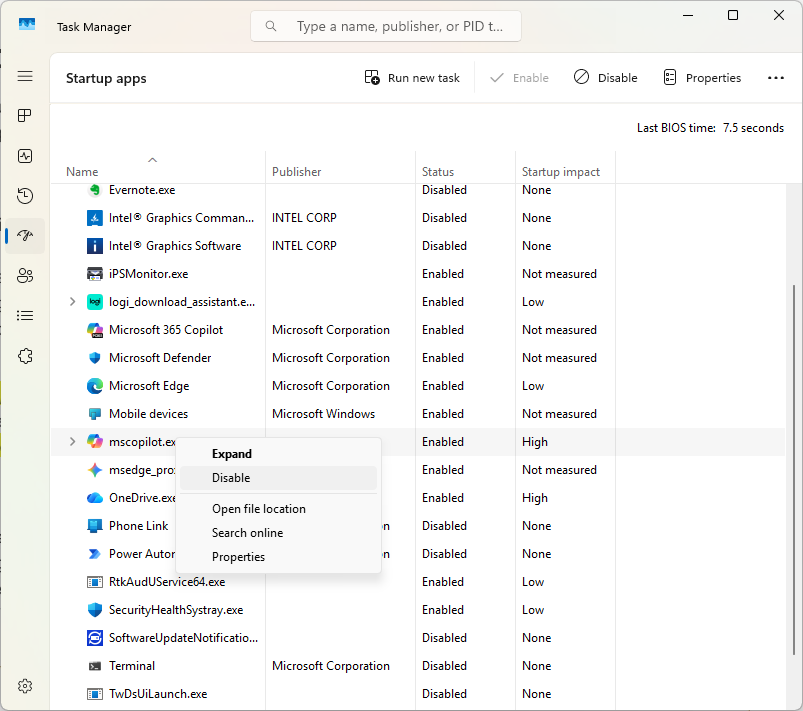
To regain control, users should audit their startup environment. Launch the Task Manager (Ctrl + Shift + Esc) and navigate to the "Startup apps" tab—the speedometer icon in the left-hand navigation pane. This view provides a "Startup impact" score (Low, Medium, High).
- Action: Right-click any non-essential application and select "Disable." If you find a process you do not recognize, right-click and select "Search online" to determine its origin.
Visual Effects and System Overhead
Windows includes a suite of animations, shadows, and transparency effects that provide a modern aesthetic but require non-trivial GPU and CPU resources. On aging hardware, these are the first things that should be sacrificed for performance.
- The Fix: Type
sysdm.cplinto the search bar, press Enter, and navigate to the Advanced tab. In the Performance section, click Settings. Selecting "Adjust for best performance" will strip away the overhead, resulting in a noticeably snappier interface.
2. Troubleshooting the Glitch Economy
While the frequency of critical system failures has dropped, "minor" glitches—Wi-Fi dropouts, print spooler freezes, and update loops—remain common.
The Evolution of Troubleshooting
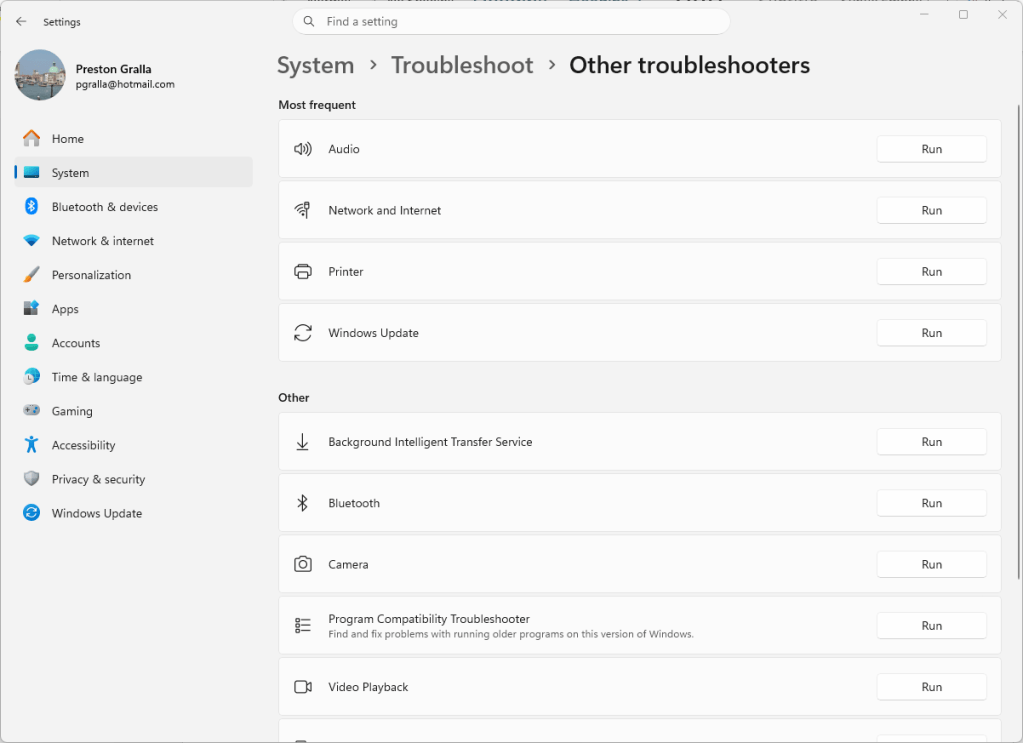
Microsoft has shifted toward automated diagnostics. Users can navigate to Settings > System > Troubleshoot to view the "Recommended troubleshooter history." Configuring these settings to "Ask me before running" ensures that you maintain oversight of system changes.
If the automated tools fail, the "Other troubleshooters" menu is your best recourse. It serves as a comprehensive library for diagnosing specific hardware-software handshakes, such as Bluetooth or Network Adapter issues.
The "Restart" Doctrine
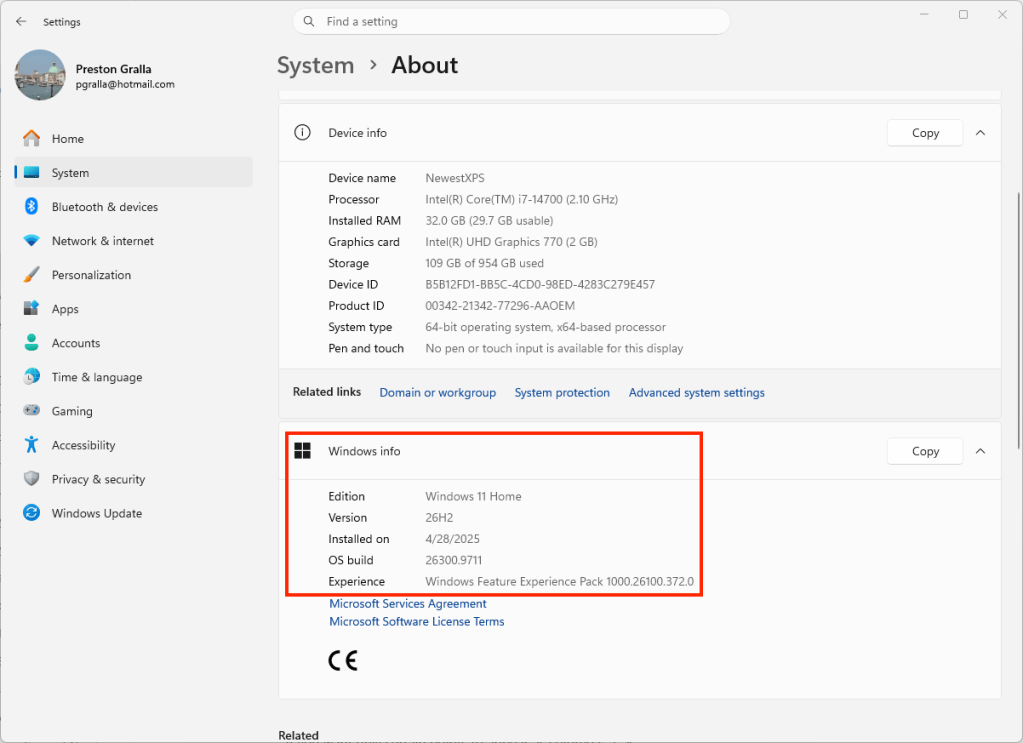
It is an adage among IT professionals that 80% of transient system errors are resolved by a full system restart. This is not mere superstition; a restart clears the volatile memory (RAM) and resets the state of background services that may have entered a deadlock. If a restart and an update check (via Settings > Windows Update) do not resolve a persistent issue, utilizing Microsoft Copilot can often provide a more surgical solution than searching through obscure forums. When querying the AI, always provide your specific Windows build number, which can be found in Settings > System > About.
3. The Privacy Incursion: Taking Back Your Data
Windows 11 is designed to be a "connected" OS, which inherently means it is a data-collection engine. Microsoft tracks telemetry, search habits, and location data to fuel its advertising and service recommendations.
Disabling Targeted Telemetry
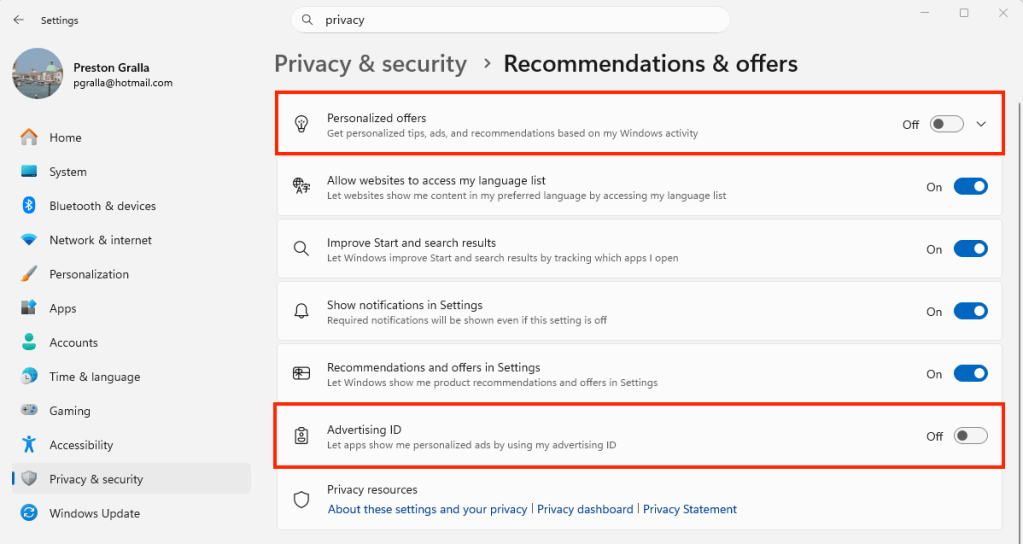
- Advertising ID: Navigate to Settings > Privacy & security > Recommendations & offers. Disable the "Advertising ID" to prevent Microsoft from building a profile of your interests for targeted ad delivery.
- Personalized Offers: In the same menu, toggle off "Personalized offers." This stops the OS from analyzing your account info to push "relevant" third-party products.
- Location Tracking: For those concerned about granular tracking, go to Settings > Privacy & security > Location. You can disable location services globally or toggle access for specific apps individually.
The Nuclear Option: Microsoft’s Privacy Dashboard
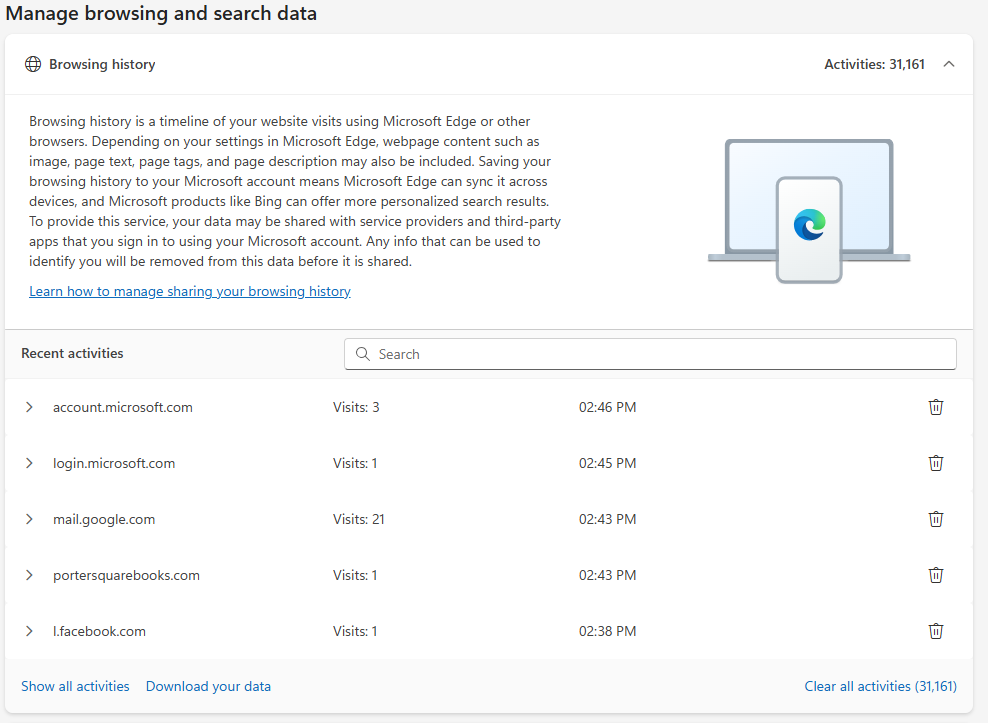
For a comprehensive cleanup, visit the Microsoft Privacy Dashboard. This web-based portal allows you to view and delete search history, browsing data, and voice activity logs directly from Microsoft’s servers. It is a vital step for users who want to minimize their digital footprint.
4. The Default App Dilemma
Perhaps the most egregious example of "friction-by-design" in Windows is the difficulty of changing default applications. Microsoft’s attempt to funnel users into Edge and other proprietary apps has made the process of setting a third-party browser, such as Chrome or Firefox, unnecessarily complex.
The Two-Step Default Configuration
Changing a browser is no longer a "one-click" affair.
- Go to Settings > Apps > Default apps.
- Search for your preferred browser and click it.
- Even after setting the primary link handler, Windows often leaves specific file types (like .pdf, .svg, or .html) associated with Edge.
- The Fix: You must manually search for each file type extension in the "Default apps" menu and re-assign them to your preferred application. It is a tedious, manual process, but it is the only way to ensure your workflow remains outside of the Microsoft ecosystem.
5. The OneDrive Recycle Bin Mystery
Cloud storage is a necessity for modern productivity, but the integration of OneDrive often causes confusion regarding file deletion. The issue stems from the "dueling" nature of the Windows Recycle Bin and the OneDrive Recycle Bin.
Where Do My Files Go?
When you delete a file, it may end up in the local Windows Recycle Bin, the cloud-based OneDrive Recycle Bin, or both—depending on the sync status and the method of deletion.
- Web vs. Desktop: If you delete a file via the OneDrive web interface, it will only appear in the OneDrive online Recycle Bin.
- File Explorer: If you delete a file from a synced folder in File Explorer, it will generally appear in the Windows Recycle Bin.
The Golden Rule: Always prioritize deleting files through File Explorer. This ensures the file is moved to the local Recycle Bin, providing a safety net. If a file disappears and you cannot find it locally, log in to the web-based OneDrive to check the cloud-hosted Recycle Bin.
Implications for the Future
The tension between Microsoft’s desire to create a unified, service-driven experience and the user’s desire for a streamlined, private, and efficient operating system is unlikely to vanish. As Windows continues to integrate AI and cloud-native features, the burden of customization will continue to fall on the user.
By taking control of startup processes, tightening privacy settings, and understanding the nuances of system storage, users can transform Windows from a source of frustration into a powerful, responsive, and efficient tool for professional success. The operating system is a powerful machine—you just need to know which levers to pull.