
















































For many professionals, the inbox is the digital equivalent of a never-ending battlefield. Despite Gmail’s ubiquity as the world’s leading email platform, the vast majority of its users operate at a fraction of its true potential. Beneath the familiar interface lies a sophisticated engine of productivity, housing tools that—once unlocked—can shave hours off your weekly administrative load.
Whether you are looking to streamline your workflow, automate redundant tasks, or simply achieve that elusive "Inbox Zero" status, mastering these 16 hidden gems will fundamentally transform how you interact with your digital correspondence.

The Anatomy of an Efficient Inbox: Foundational Efficiency
The journey to an optimized Gmail experience begins with understanding that your inbox is not just a storage container for incoming messages—it is an interactive workspace.
Inbox Step-Savers
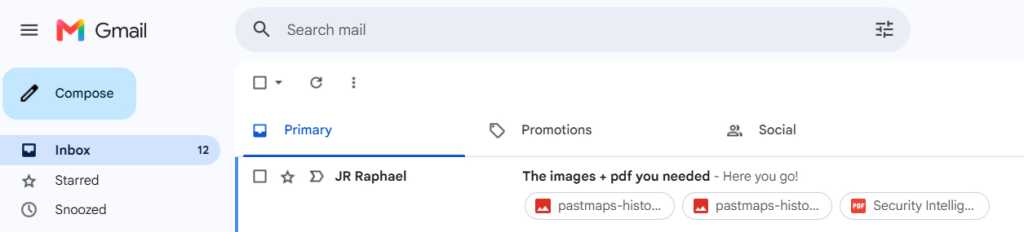
- Instant Attachment Previews: You no longer need to open an email to review its contents. By keeping the "Default" view setting, Gmail displays small, actionable tiles directly below the subject line for any included attachments. Clicking these provides an immediate preview, saving you the time of loading the entire email thread.
- Hover-Action Mastery: Efficiency is often a matter of seconds. When you hover your mouse over any message in your inbox, a set of icons appears on the right side. These allow you to archive, delete, mark as read, or snooze messages without opening them. Furthermore, if the email contains a calendar invitation, you can RSVP directly from this hover menu, bypassing the email body entirely.
Navigation and Keyboard Power
- Thread Management: When dealing with lengthy conversation threads, the ability to expand and collapse is vital. By enabling keyboard shortcuts (via Settings > See all settings > Keyboard shortcuts), you can use the semicolon key (
;) to expand a thread to see all historical replies, and the colon key (:) to collapse it back to the most recent message. - Customizing Your Commands: Gmail allows for a personalized keyboard experience. Once you enable "Custom keyboard shortcuts" in the Advanced tab of your settings, you can map actions to your preferred keys. For power users, remapping "Go to Inbox" to a single key (such as
i) mimics the streamlined efficiency of the now-defunct Google Inbox service, drastically reducing keystroke fatigue.
Integration and Workflow Synergy
Gmail’s utility is amplified when integrated with the broader Google Workspace ecosystem.
The Power of the Side Panel
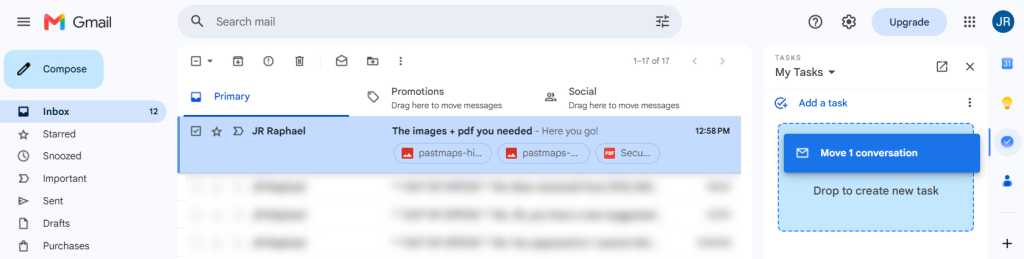
- The Side Panel Command Center: The vertical bar on the right-hand side of your browser houses Google Calendar, Keep, Tasks, and Contacts. A critical, often overlooked feature is the ability to drag and drop emails directly into the Google Tasks icon. This creates a new task linked to the original email, ensuring that actionable items are never lost in the shuffle.
- Instant Contact Access: If you frequently manage high volumes of correspondence, navigating to the full Google Contacts interface is often necessary. With shortcuts enabled, simply press
gfollowed bycto open your full contacts list in a new tab instantly.
Advanced Composing and Reply Strategies
Most users spend the majority of their time in the "Compose" window. Optimizing this space is the most effective way to improve daily output.
Streamlining Responses
- The One-Touch "Unread" Toggle: If you accidentally open an email but aren’t ready to address it, the underscore key (
_) is your best friend. Pressing it marks the message as unread and simultaneously returns you to your main inbox view, saving you the manual effort of clicking back. - The "Send and Archive" Workflow: This is perhaps the single most impactful setting for inbox hygiene. By enabling "Send and Archive" in your General settings, Gmail adds a specialized button to your reply window. Using this—or the keyboard shortcut
Ctrl+Enter—sends your response and archives the thread in one motion, preventing cluttered "sent" items from lingering in your primary view. - Instant Draft Disposal: We have all started an email only to realize it isn’t necessary. Instead of clicking the trash icon or closing the window manually, the shortcut
Ctrl+Shift+Dwill instantly delete your current draft, allowing you to move on immediately.
Sophisticated Formatting and Composition
- Hotkeys for Advanced Text: Beyond basic bolding and italics, Gmail supports professional formatting hotkeys. Using
Ctrl+Shift+7creates a numbered list, whileCtrl+Shift+8creates a bulleted list. These shortcuts eliminate the need to navigate the formatting toolbar with your mouse. - Window Flexibility: Did you know you can control your compose window behavior? Using
Shiftwhile clicking "Compose" opens the window in a new tab, whileShiftwhile clicking "Reply" allows you to pop out your response into a separate window, enabling easier multitasking between your inbox and the draft.
The Art of "Smarter Snoozing"
Snoozing is not about procrastination; it is about intentionality. By moving messages out of your current view and scheduling them to reappear when they are actually actionable, you maintain a clean mental workspace.
Managing Your Time
- Strategic Snoozing: If you cannot deal with an email in under one minute, do not leave it in your inbox. Use the snooze feature (the clock icon or the
bkey) to defer the item until a time when you have the capacity to resolve it. - Batch Snoozing: You can select multiple emails by checking the boxes to the left of them, then clicking the three-dot menu to snooze them all at once. This is an essential technique for clearing a Monday morning inbox backlog.
- The Snoozed Dashboard: If you need to retrieve a message before its scheduled reappearance, the "Snoozed" folder in the left-hand sidebar acts as a holding pen. Here, you can adjust the date or delete the snooze altogether.
Mobile Optimization
- The Mobile Workflow: On your smartphone, the snooze function is tucked away behind the three-dot menu. However, you can optimize this by modifying your swipe gestures.
- Customizing Swipe Gestures: By heading to Settings > Swipe actions, you can assign "Snooze" to a left or right swipe. This allows you to process your inbox with a single finger movement while on the go, effectively bringing desktop-level efficiency to your mobile device.
Implications for Modern Productivity
The adoption of these 16 strategies carries significant implications for professional communication. Data suggests that the average worker spends approximately 28% of their work week managing email. By reducing the "frictional cost" of each email interaction—the clicks, the navigation, the context-switching—users can recover substantial time.
Furthermore, these tools shift the user from a reactive state (constantly fighting the rising tide of incoming mail) to a proactive state (managing tasks and priorities with precision). While these shortcuts may seem minor in isolation, their cumulative effect is a profound increase in cognitive bandwidth, allowing professionals to dedicate their focus to high-value tasks rather than digital housekeeping. As Gmail continues to evolve, these core keyboard-driven and workflow-based habits remain the gold standard for maintaining control over the modern digital inbox.