
























































Master Your Mobile Inbox: 16 Hidden Gmail Android Features to Supercharge Your Productivity

Email is an inescapable component of the modern professional landscape. For many, the Gmail Android app serves as the primary gateway to their digital correspondence. While the interface is designed for simplicity, the application hides a robust suite of advanced functionalities beneath its surface. Often, users settle for the default configuration, unaware that the platform offers granular control over formatting, notification management, and workflow automation.
By tapping into these "out-of-the-way" settings, users can transform their mobile email experience from a reactive chore into a streamlined, proactive productivity system. Below, we explore 16 powerful, often overlooked features designed to help you regain control of your inbox.
1. Advanced Email Formatting Commands
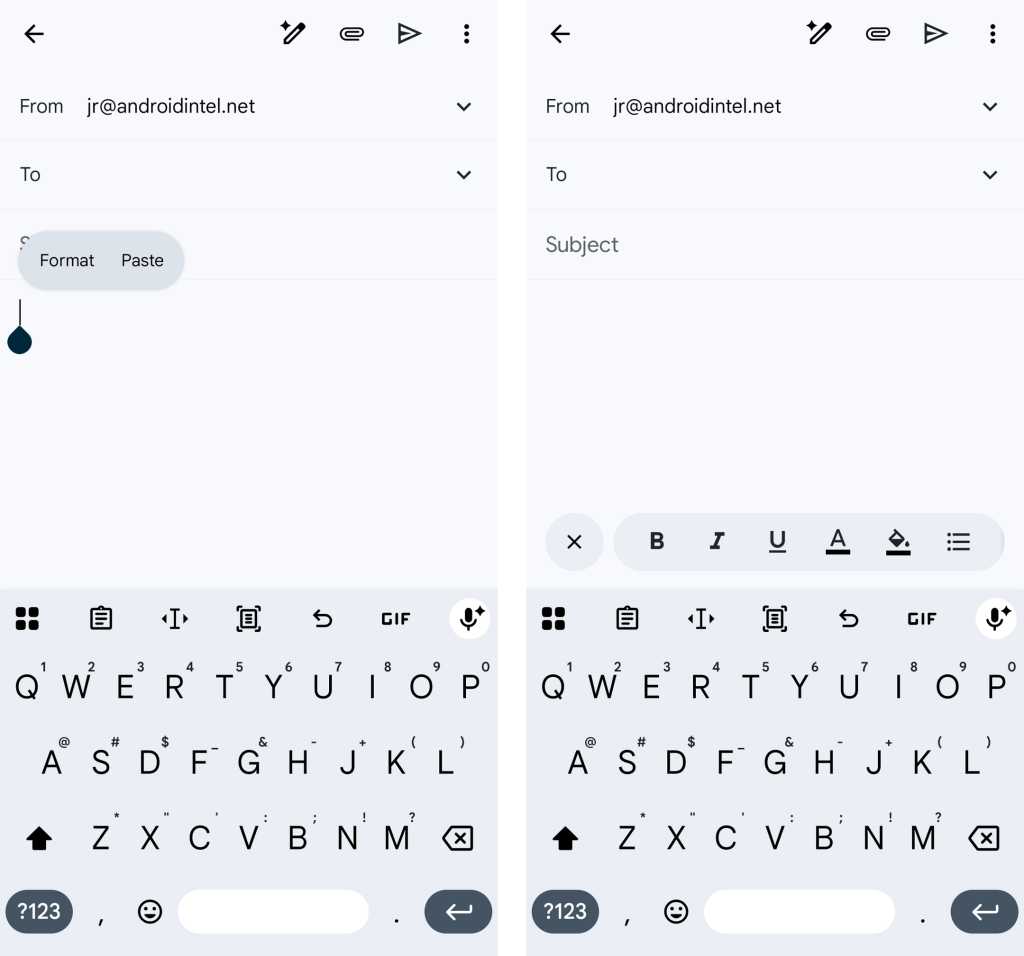
At first glance, the Gmail mobile compose screen appears minimalist. However, users can access a full-featured formatting toolbar by long-pressing on any empty space within the body of an email draft. Selecting "Format" reveals a comprehensive set of styling tools, including bold, italics, underlining, and text color customization. This is particularly useful for professionals who need to maintain document standards on the go or require a "Clear Formatting" option to strip messy metadata when copying and pasting text from external sources.

2. Customizing Swipe Gestures
Efficiency in mobile email often comes down to the speed of triaging. Gmail allows users to redefine the default "swipe" actions to match their personal workflow. By navigating to Settings > General settings > Swipe actions, you can assign specific functions—such as "Archive," "Delete," "Mark as read/unread," or "Snooze"—to left and right swipes. Customizing these gestures minimizes the time spent navigating menus, turning inbox management into a series of fluid, high-speed motions.
3. The Rapid Account-Switcher
For power users managing multiple Google accounts, the constant toggling between profiles can be a friction point. Gmail offers a hidden navigation shortcut: simply swipe up or down on your profile picture in the top-right corner of the screen. This gesture instantly cycles through your connected accounts, allowing you to switch between your primary work email and personal inbox in a fraction of a second.
4. The Comprehensive Contact Control Panel
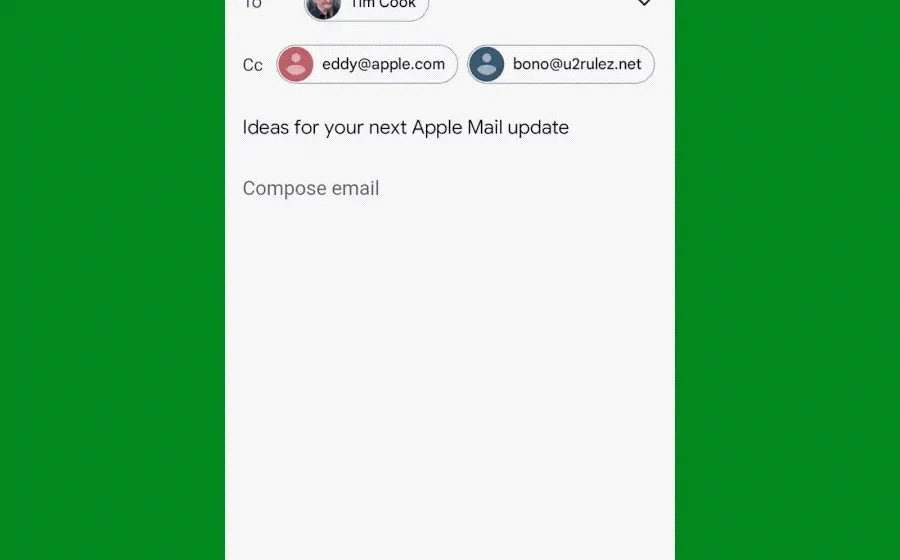
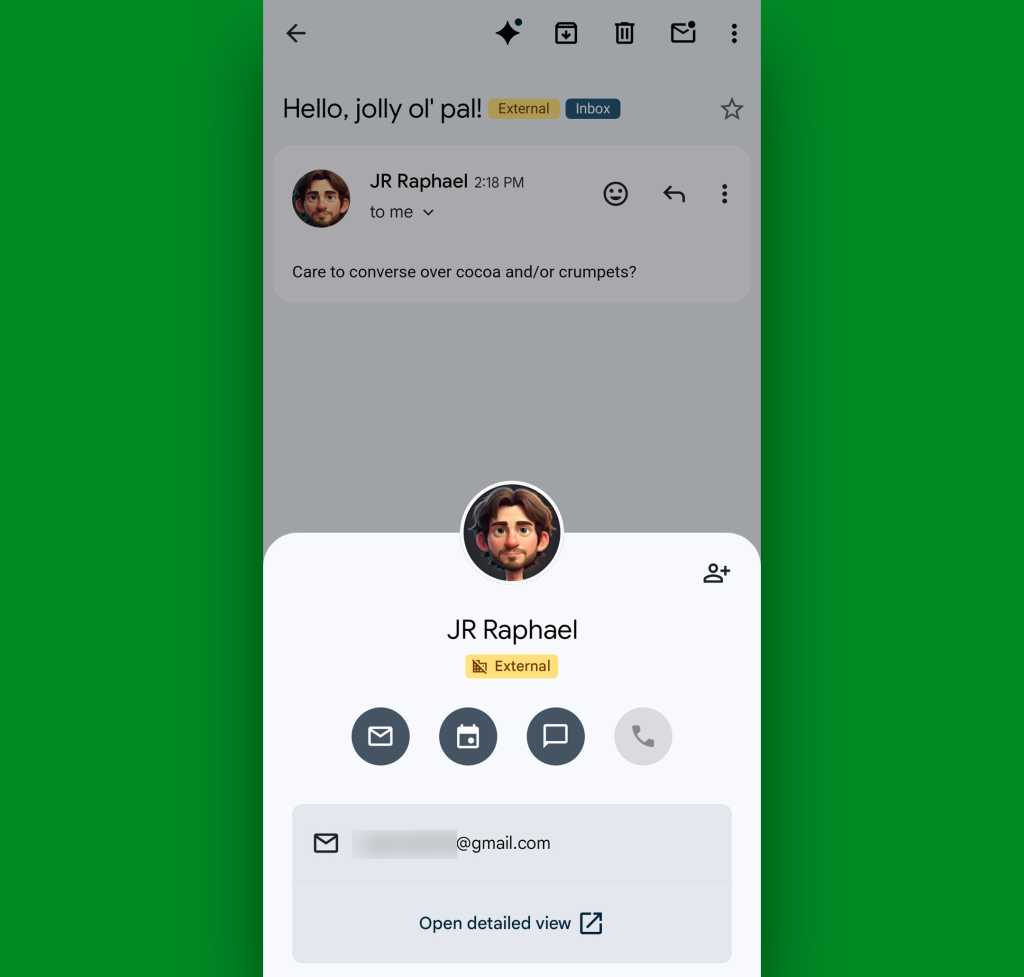
When viewing an email, the sender’s profile picture is more than just a decorative element. Tapping it triggers a robust contact card. This panel provides one-tap shortcuts to:
- Initiate a new email thread.
- Schedule a Google Calendar event with the sender.
- Launch a Google Chat conversation.
- Place a phone call (if the number is saved).
This feature effectively centralizes your communication ecosystem, ensuring that you don’t need to exit the Gmail app to coordinate with team members or clients.
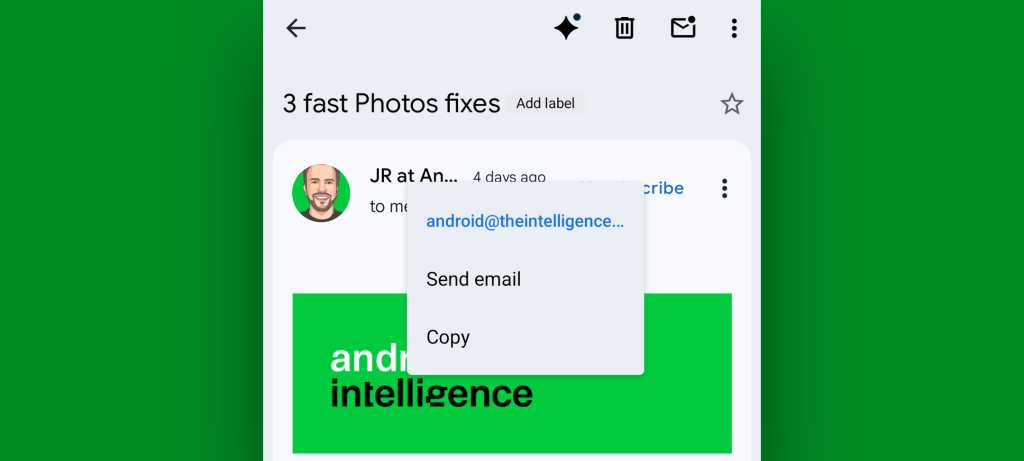
5. Long-Press Sender Actions
Productivity is often hindered by the need to manually copy information. If you long-press a sender’s name while viewing an email, a contextual menu appears. This allows you to instantly copy the sender’s email address to your clipboard or initiate a new message thread immediately. It is a minor shortcut that pays dividends when you are frequently moving information between your email and other applications like CRMs or project management tools.
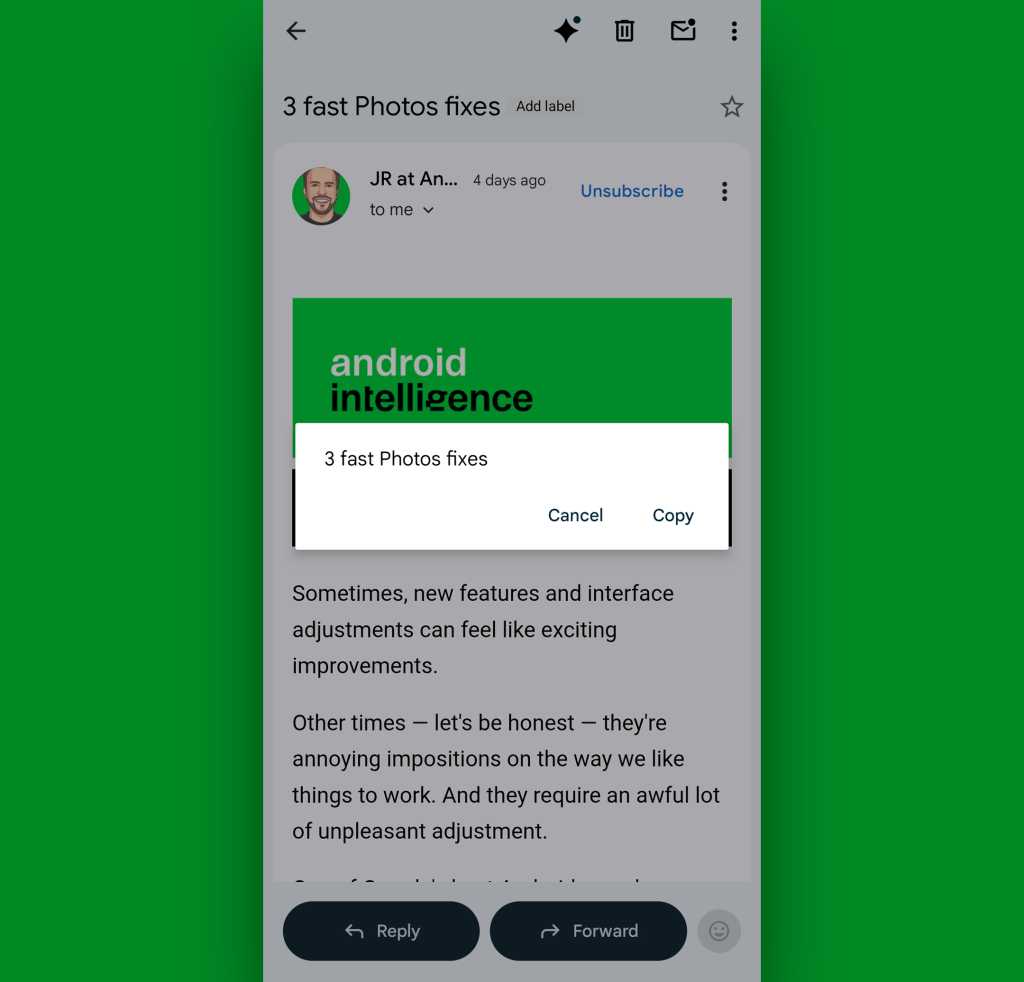
6. Instant Subject Line Copying
Similar to sender details, the subject line of an email can be difficult to select using standard touch-screen interactions. A simple long-press on the subject line of any open email reveals a hidden "Copy" command. This is an essential tool for those who frequently need to log email subjects into ticketing systems, task managers, or spreadsheets.
Chronology of Interface Evolution: A History of Control
Over the last decade, Google has iteratively transformed Gmail from a simple mail client into a communication hub. The shift began with the integration of "Material Design," which focused on clean, flat interfaces. However, as the app grew to include Google Chat, Meet, and integrated search, users began to feel the "bloat."
In response, Google introduced "Action Confirmations" and modular settings in recent updates, acknowledging that while the app needs to be feature-rich for some, it must be customizable for those who prefer a lean, focused experience. These 16 features represent the current apex of this evolution, allowing users to strip away the "noise" while retaining the powerful backend infrastructure.
7. The "Reply-All" Redo
It is a common error to hit "Reply" when you intended to "Reply-All." Previously, this necessitated closing the draft and starting over. Now, by tapping the "Reply" indicator at the top of the composing window, you can toggle between "Reply," "Reply-All," or "Forward" without losing the text you have already composed. This small UI adjustment saves valuable time and prevents the frustration of repetitive data entry.
8. The Recipient Summoning Spell
Adding recipients to a draft no longer requires navigating to the "To" field. You can now use the "@" or "+" symbol followed by the first few letters of a contact’s name directly within the body of your email. A selector box will appear, allowing you to add the recipient instantly. This is a significant improvement for long-form emails where you need to reference a colleague mid-thought.
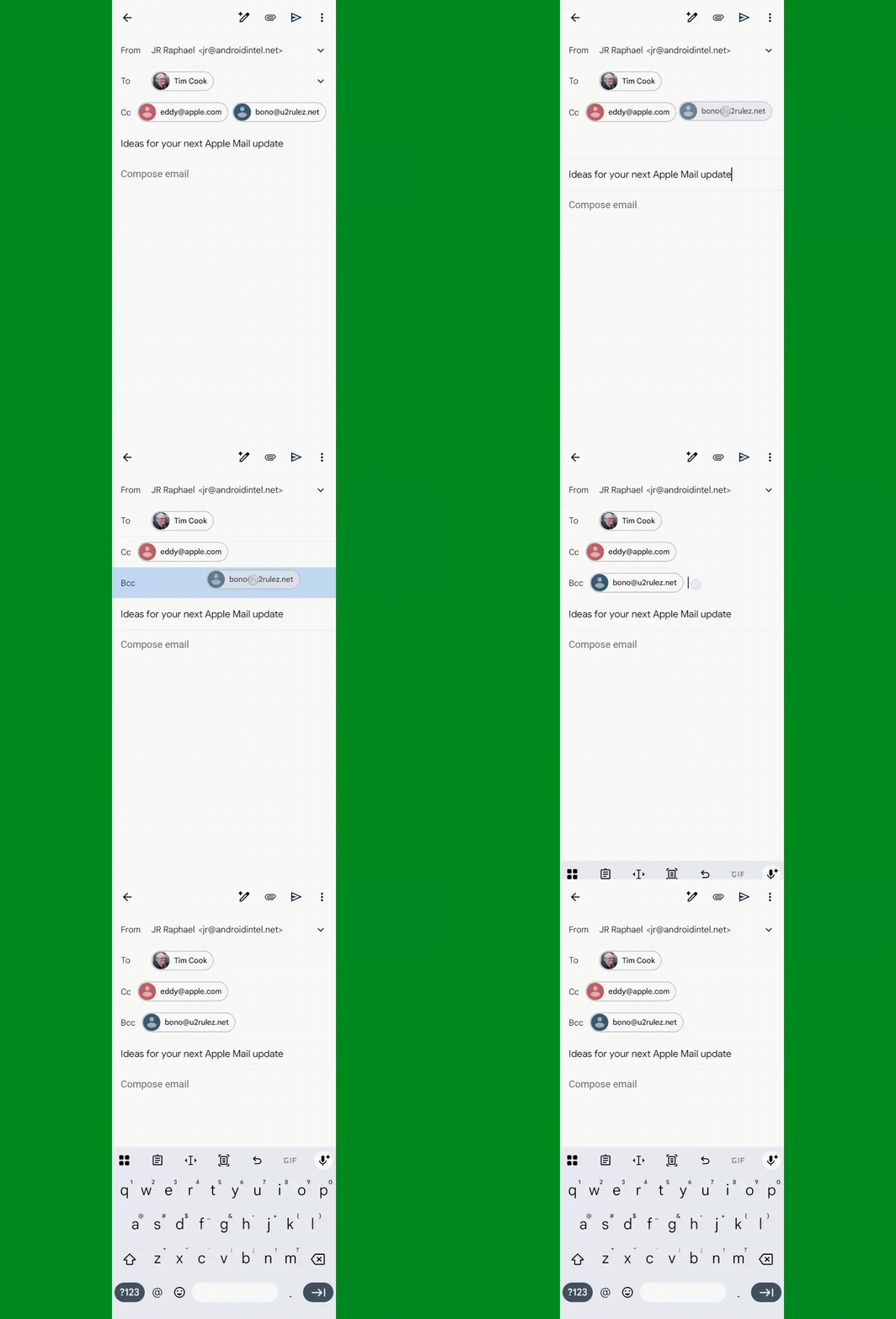
9. Seamless Recipient Reordering
If you need to move a contact from "To" to "Cc" or "Bcc," you no longer need to delete and re-type the address. Simply long-press on the recipient’s name in the header of an active draft and drag it to the desired field. This intuitive gesture brings a desktop-level of control to the mobile interface.
10. Safeguarding Against Accidental Actions
To prevent "fat-finger" errors, Google introduced "Action Confirmations." By navigating to Settings > General settings, you can enable confirmation prompts for archiving, deleting, or sending messages. While this adds a step, it acts as a crucial safety net for high-stakes professional communication, ensuring that you never accidentally delete a critical invoice or send an unfinished draft.
11. Customizing the Promotions Tab
The "Promotions" category is designed to de-clutter the inbox, but its "Top Picks" feature can often reorder messages in a way that feels counter-intuitive. By accessing Settings > [Your Account] > Inbox categories, you can disable "Enable Top Picks." This forces the app to display your promotional emails in strict chronological order, ensuring you never miss a time-sensitive offer or announcement.
12. Disabling "Nudges"
Google’s AI-powered "nudges"—which suggest emails to reply to or follow up on—can feel intrusive to those with highly organized workflows. These can be deactivated by navigating to Settings > [Your Account] > Reply and follow up. Unchecking these boxes allows you to manage your own priority list without automated reminders.
13. Reclaiming Your Screen Real Estate
The integration of Google Chat and Meet into the Gmail app has been polarizing. For those who prefer a dedicated email experience, this added navigation bar consumes valuable vertical space. You can hide this by going to Settings > [Your Account] and toggling off the "Chat" and "Meet" display options. This creates a cleaner, more focused interface that prioritizes your inbox.
14. Automatic Package Tracking
One of the most useful utilities hidden in plain sight is automated package tracking. When Gmail detects a shipping confirmation, it surfaces a tracking card at the top of the email. To ensure this is active, check Settings > [Your Account] > Package tracking. This feature eliminates the need to visit third-party courier websites to monitor the status of incoming deliveries.
15. The Out-of-Office Vacation Responder
Managing your "Vacation Responder" used to require a desktop browser. Now, this can be handled entirely within the mobile app. Under Settings > [Your Account] > Vacation responder, you can enable, schedule, and draft your auto-replies. This is a vital feature for the modern professional who may need to trigger an away message while traveling or between meetings.
16. Selective High-Priority Notifications
To combat "notification fatigue," Gmail offers a "High priority only" setting. By navigating to Settings > [Your Account] > Notifications, you can instruct the app to only alert you to messages that its algorithms deem important. For even greater control, users can pair this with custom filters to ensure they only receive pings for specific senders or subject lines, keeping their focus on what truly matters.
Implications for Digital Wellbeing
The move toward these granular settings signals a shift in software philosophy. As mobile applications become more "intelligent," they risk overwhelming the user with automation. By offering these 16 features, Google acknowledges that true productivity is not about having more tools, but about having the right tools configured to one’s personal workflow.

Whether you are a corporate executive or a freelancer, reclaiming control over your inbox through these settings is a fundamental step toward better digital hygiene. By silencing the noise of unwanted notifications, reclaiming screen real estate, and utilizing gestures that speed up communication, you can move away from being a passive recipient of email and toward being an active, efficient manager of your own time.